
Documentation
Prompts
On this page
TL;DR
Prompts holds two kinds of items: regular prompts (goal-style text) and playbooks (numbered steps, fewer hallucinations on re-runs). Editing does not touch devices; use Run in chat or Run playbook when ready.
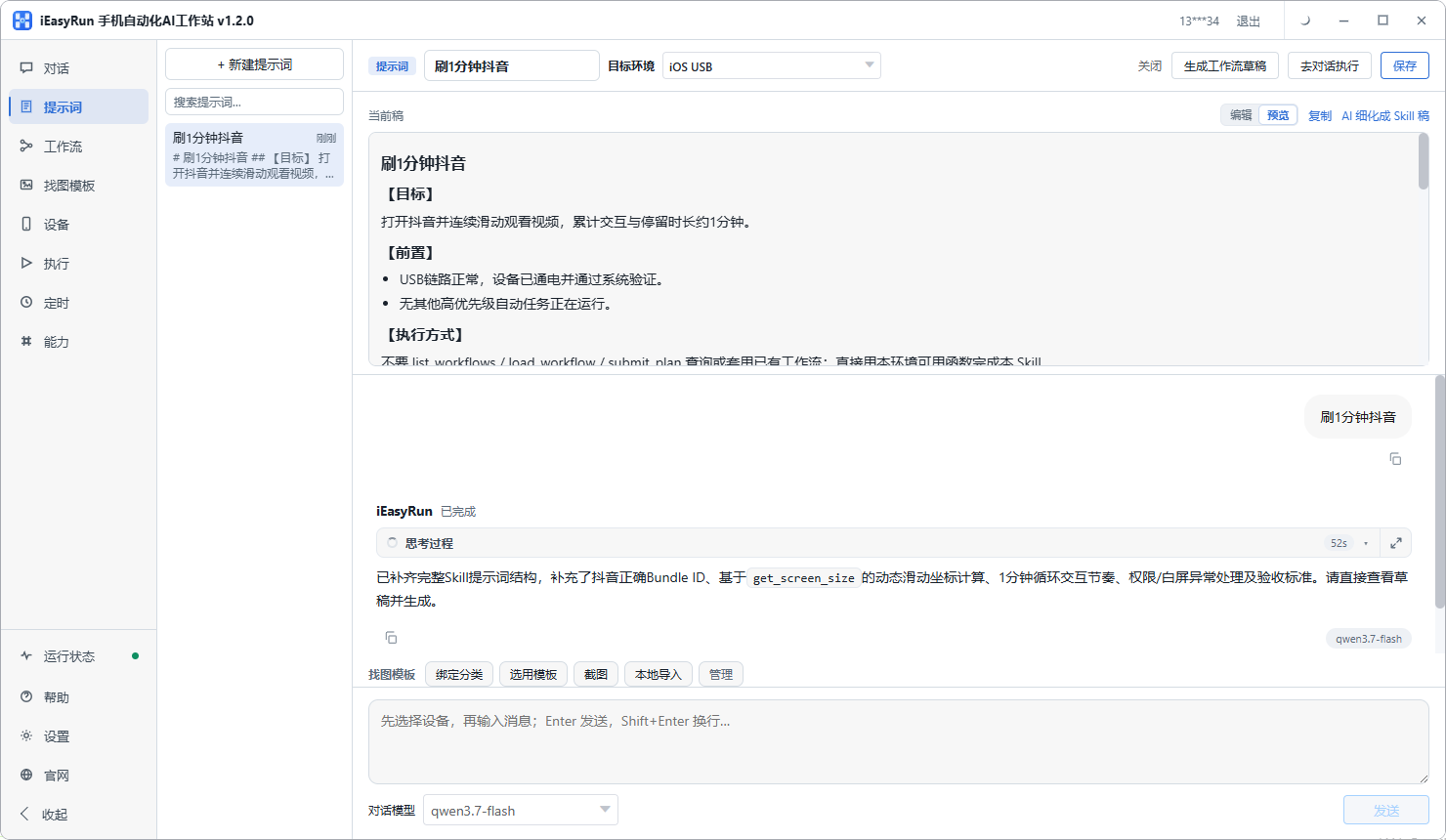
Regular prompts
Turn “automate X on my phone” into step-level detail:
- Which app
- Order of taps and waits
- Edge cases
Save the result and open it from Chat via Run in chat.
Basic flow (regular)
- Open Prompts
- New or open a prompt
- Describe the goal; answer AI follow-ups
- Save → Run in chat → pick devices and send
You can also Save as prompt from Chat refinement results.
Playbooks
Best when a chat turn already succeeded with real tool calls, and you want the same path again with fewer re-planning hallucinations (long tasks / loops).
Save
- In Chat, pick devices and run a successful turn
- On the assistant tool execution record, click Save as playbook
- Numbered steps are written into Prompts with a Playbook badge
- Edit steps / loop conditions; use Insert loop block in the studio if needed
Run
- Select a playbook-badged item
- Click Run playbook (not a plain fill-in)
- Chat shows a Playbook mode banner; confirm devices and Send
- The turn adds a “follow the playbook steps strictly” system constraint
Right-click a list item to Promote to playbook or Demote to regular.
Regular vs playbook vs workflow
| Regular prompt | Playbook | Workflow | |
|---|---|---|---|
| Nature | Reusable text / skill draft | Numbered steps, fixed params | Editable, trial-runnable flow |
| Touches device while editing? | No | No (must succeed in chat first) | Yes on trial run |
| How to run | Run in chat (AI plans) | Run playbook (constrained) | Runner / schedule |
| Typical use | Reusable goals | Verified path, fewer hallucinations | Visual fixed steps at scale |
For hard guarantees and zero-token batch runs, use Workflows.