A friend who runs a home-goods account complained to me last winter that he was setting a 3am alarm every day just to get posts out.
I assumed it was about shipping. It was not. It was about videos. He wanted TikTok auto publish to work and could not find a way in, so he had been carrying it by hand.
His accounts target the United States and the content is American home interiors, so publishing has to land in the US evening. Three in the morning here is exactly that. He tried posting during his own working day and the numbers dropped noticeably, so he settled on getting up in the dark. Two months of that and he was worn down.
I asked how long one post takes him. Under two minutes. So the problem was never the two minutes. It was that those two minutes had to land at three.
Scheduling is two unrelated things bolted together
People treat TikTok scheduled posting as a switch you turn on. Taken apart, it is two pieces.
The first piece is fixing the actions. Open TikTok, tap the plus, pick a video from the library, fill the caption, add hashtags, choose a cover, tap publish. Stored as a template, that runs whenever you press go, with no rethinking involved.
The second piece is attaching a time. At a chosen moment, fire that template once.
Seen as two pieces, the order is obvious. Get the flow running reliably before you give it a clock. Reverse it and the next morning gives you a failure record with no indication of which step broke.
The time has to be worked out backwards
This is where an overseas account differs most from running a domestic one, and it deserves its own section.
On a domestic platform you can think in your own time zone. Overseas you cannot: your evening may be the audience morning, and your morning may be their late night. So the question is not what time you want to post. It is:
- Decide which market the content targets, and roughly when people there scroll, usually their evening
- Convert that moment into your own time zone
- What you get is the time to enter into the schedule
My friend targets the US, so eight in the evening US Eastern converts to about nine in the morning his time, which is his normal working day. He skipped this step at first and went with the intuition that it had to be the middle of the night, and that intuition is what put him in an alarm clock loop.
Do the arithmetic and a lot of work you assumed required staying up turns out not to.
Three things to confirm on the phone side
The time settles when it runs. Three checks settle where.
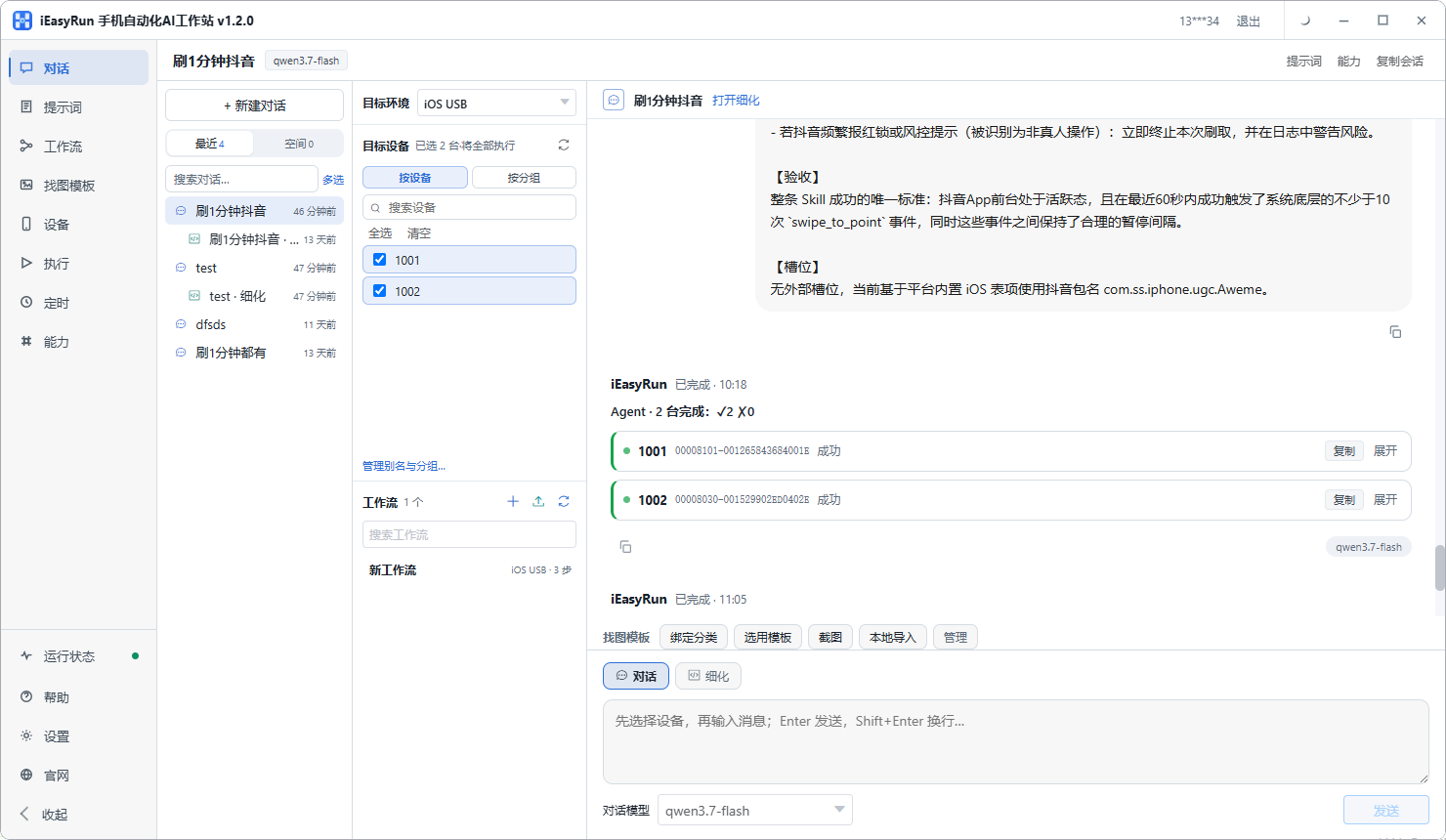
First, the workstation is installed. Follow the install selection page, then send one instruction from the conversation page to the target phone. If that lands, the chain is live.
Second, the phone is in the list and has a name. Four actions on the Devices page: scan, add, alias, group. Do not skip the alias. With accounts in different markets, seeing US account 1 in a list instead of a random string is a different order of efficiency.
Third, the hard rule: an offline device can be seen but not used. At the scheduled moment, the phone has to be online.
One more: the computer running the schedule cannot sleep. Scheduling is local with no cloud fallback behind it, so disable sleep and automatic updates on that machine.
Put the whole chain into plain words
How well you describe the flow decides how smoothly everything after it goes.
Open a new conversation, select the phone, and explain the job the way you would to a colleague. Use refinement mode the first time. It will come back with the details you left out, such as which video in the library to start from, whether the sound matters, and whether the app should return to the feed afterwards.
A description you can adapt rather than write:
Open TikTok, tap the plus at the bottom, choose the most recent video in the library, tap next, put the text I give you in the caption box, use the hashtags I give you, keep the default cover, do not change the sound, and stop in front of the publish button without submitting.
Keep the last clause for now. Publishing cannot be undone, so letting it stop at the door for the first few runs is far safer than letting it go end to end. Drop the restriction once several days have gone cleanly.
Save the refined version to the Prompts page and call it up when the content line changes.
What has to become a parameter
Once the flow runs reliably, save it to Workflows.
There is a simple test here: whatever changes every time becomes a parameter; whatever never changes is written into the template.
For publishing, the line falls like this:
| Changes every time, so a parameter | Never changes, so hard-coded |
|---|---|
| Caption | Open TikTok, tap the plus |
| Hashtags | Choose a video, tap next |
| Which cover | Where the flow stops |
| Which sound | Whether it returns to the feed |
Leave those four on the left open and one template covers every account and every post. Hard-code the caption as well and you are back to one workflow per video, which defeats the point.
Run validate to check connections and parameters, then test run on one phone. Results land in Execution History, which beats watching the screen.
Moving a week of files onto several phones
Nobody running several accounts gets to skip this, and it is where most people stall. Publishing needs the video already in the phone library.
I usually reach for the first of these:
Bulk push from the workstation. Send the week of files into each phone library in batches, not all at once, or you saturate the network. On iPhone, grant photo library permission first or the file arrives and cannot be saved.
Let the flow download it. Put the video at a reachable address and add a step that triggers the download. Flexible, slow, and good for topping up a few devices.
Cloud storage sync. Fine for three to five devices. Beyond that, tracking how far the sync got becomes a job in itself.
When nothing runs, start here
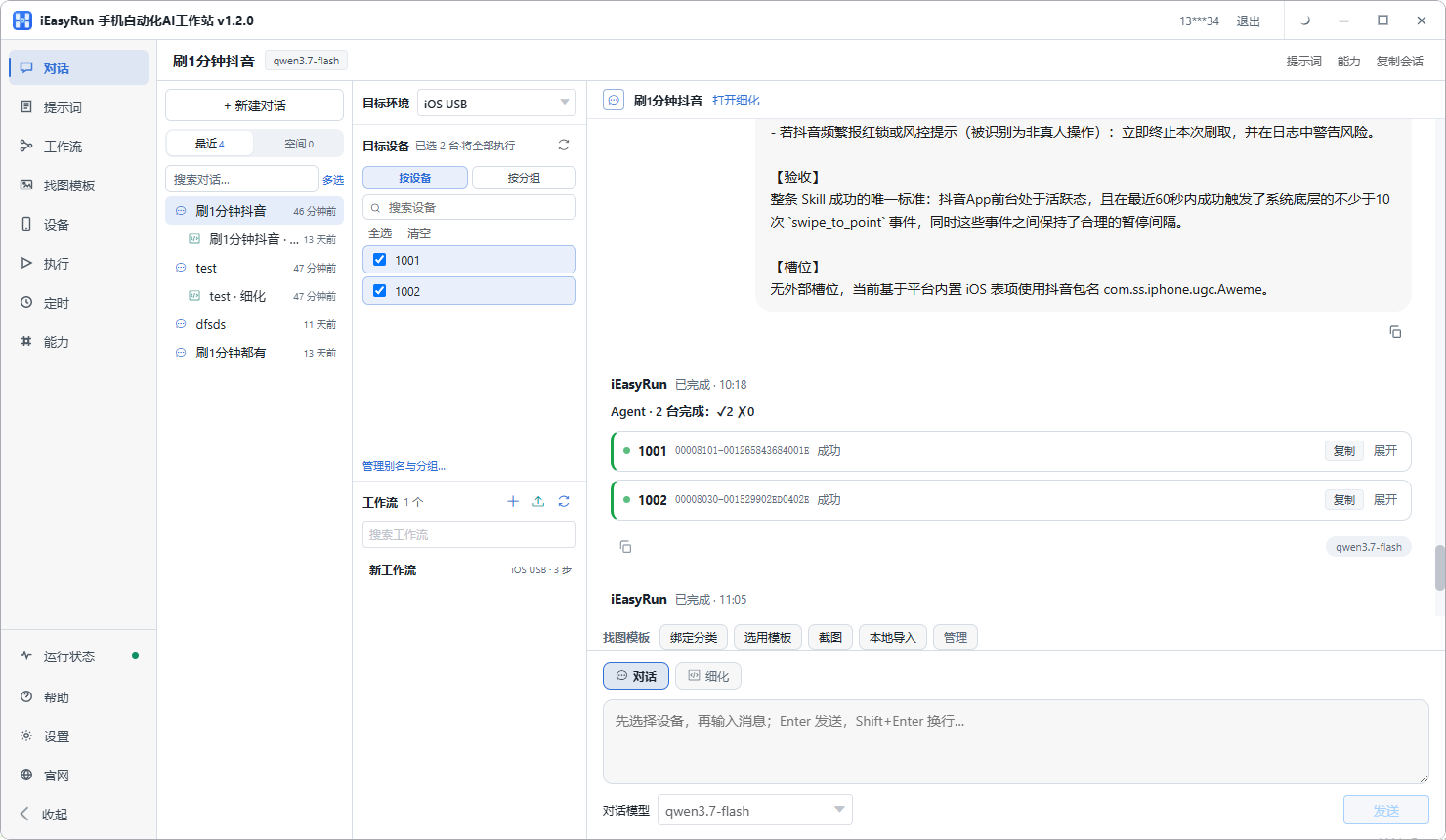
Once the time has passed, open that task in Execution History. Source, status, target device and error message are all there, which is enough to sort the problem into a category.
My habit is to read it in this order:
- Device offline, go to the device page, then to the relevant install page for connection settings
- Automation environment, go to the install page and check the phone-side program and permissions
- Unauthorised or expired, open the workflow library and check whether the template can still run
- Image matching or OCR failure, which usually means a button with no text, so add an image template
- No error at all, stuck on a step, which is a wait set too short. Widen it and retry.
Working that list locates most problems within minutes.
Setting the rule on the schedule page
With all of the above in place, add the rule on the Schedule page. TikTok auto publish is configured on the computer, and this is the entry point.
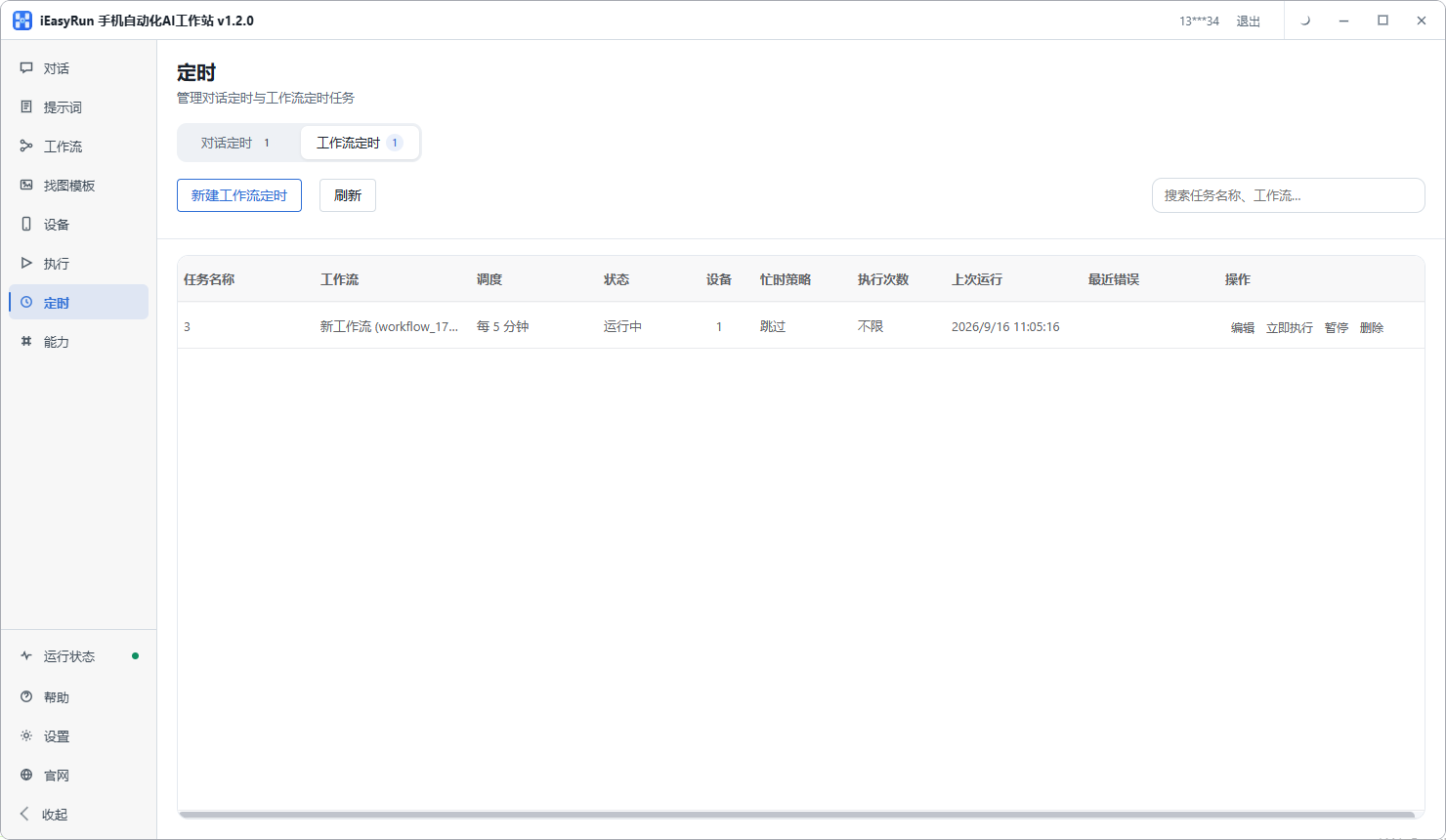
There are two kinds: a workflow schedule, which runs a fixed template, and a conversation schedule, which runs whatever a conversation says. Publishing has fixed steps, so use the first.
Two suggestions.
Offset the content lines from each other. With accounts in several markets, do not let them all fire on the same minute. It looks more natural, and if one device misbehaves you can identify it at a glance.
Do not treat the schedule as a substitute for tuning the template. It saves the button press, not the maintenance.
The prerequisites one more time, because missing any one of them means nothing fires: the workstation open, the computer not sleeping, the target phone online or able to reconnect on time.
Back to the friend with the alarm. He split TikTok scheduled posting into three workflows, each with its own time, all worked back from US Eastern, each offset by ten or fifteen minutes. He does not get up any more. He opens Execution History when he reaches the office. One line of his stuck with me: what he got back was not those two minutes, it was never having to sit up waiting for a publish button again.
TikTok auto publish has no craft in it. It just costs people time. Hand that part over and your attention goes back to the content. Connect one phone first, get the simplest publish flow working, then give it a clock.
Frequently asked questions
- Can scheduling be done without a third-party service?
- Yes. Both the trigger and the run happen on your own computer: the publish actions are stored as a template, and the template gets a time rule. Nothing passes through a cloud service and no external account is involved.
- The time passed and nothing happened. What is the likely cause?
- Suspect the computer first. Scheduling is local, so if the workstation is closed, or the machine went to sleep, the task simply does not fire. After that, check whether the phone is online, and for phones on a cable, whether the connection is still good. Those three cover most cases and are the fastest to rule out.
- Do the accounts need to be spread out in time?
- Yes. Stacking them on one minute looks unnatural, and when something fails you cannot tell whether one device is at fault or the template itself. Inside the target market busy window, offset the devices by ten to fifteen minutes.
- The caption and cover differ every time. Does that mean a template per post?
- No. Leave the changing values as parameters, such as caption, hashtags, which cover to use and which sound to attach. Parameters are passed in per account at run time, so the template only holds the actions that never change, and one covers a batch.
- How do a week of video files get onto several phones?
- The least work is having the workstation push them into each phone library in batches rather than all at once. On iPhone, grant photo library permission first, or the files arrive and cannot be saved. Cloud storage sync works with a few devices and gets hard to track beyond that.
- Is a scheduled run the same as tapping publish yourself?
- Same chain, different trigger. A flow that works by hand will usually behave on a time rule. A flow that stumbles by hand should not be scheduled yet, because the next thing you will see is a failure record the following morning.
- Does the task still run if the computer is off?
- No, and it is worth being clear about that. Scheduling lives entirely on your machine with no cloud fallback, so a computer running scheduled tasks should have sleep and automatic updates disabled. Otherwise you wake up to a night of nothing.
- How do I confirm it actually published?
- Check the task in Execution History. It records the source, the status, the target device and any error. Open every record for the first week or two, then move to spot checks.
Stop sitting up for it
Freeze the publish flow into a template and let the clock pull the trigger
Software is completely free and runs on your own computer. The phone just needs to be online.