
A few years back someone who makes handmade jewellery asked me whether Instagram bulk posting could be made less painful. She had eight accounts, one per collection, and a daily posting round that ate over two hours.
I asked where the two hours actually went. The images were already shot last week, she said, and the captions were written in a notes app. The time went into publishing. Open the app, tap the plus, find the right image in the library, paste the caption, add hashtags, set the location, pick a cover, tap share. Seven or eight minutes per account, eight accounts, every day.
My first thought was: there is no creativity in that sequence. It is a fixed set of taps.
Could a computer do it? Yes. That is what it takes to automate Instagram posts.
Where the difficulty actually sits
Most people assume the hard part of running multiple Instagram accounts is the number of accounts. It is not.
The first obstacle is that the assets and the publish action cannot be separated. Your images are in the phone library and the publish entry is in the app, so the whole task happens on the phone. Sitting at a desk to get it done is not actually an option.
The second is that every account walks the full sequence. The app supports switching accounts on one device, but after switching you still tap through the same steps. Switching saves you the login, not the tapping.
The third is that the details differ per account, so mistakes happen. This collection uses these hashtags, that one uses a different set, and the cover position is not the same. Holding eight sets of details in your head while tapping is how a post ends up on the wrong account.
Notice that in all three, the only part needing a person is deciding what to publish. The rest is mechanical, and mechanical is what can be frozen into a template.
The steps one post takes
I asked her to walk me through a single post out loud. It came out like this:
- Unlock the phone, open Instagram
- Tap the plus in the middle of the bottom bar
- Find the chosen image in the library
- Tap next into the edit screen, usually skipped
- Paste the prepared caption
- Append five to eight hashtags
- Add the location of the shop
- Pick a cover, when the post has several images
- Tap share
- Wait for it to finish, return to the feed
Ten steps. Steps 3, 5, 6 and 7 change every time. The other six are identical.
That ratio is typical. More than half the sequence is fixed, and the parts that change can all be prepared in advance. The only judgement left is which piece goes out on which account today.
Describe the flow out loud
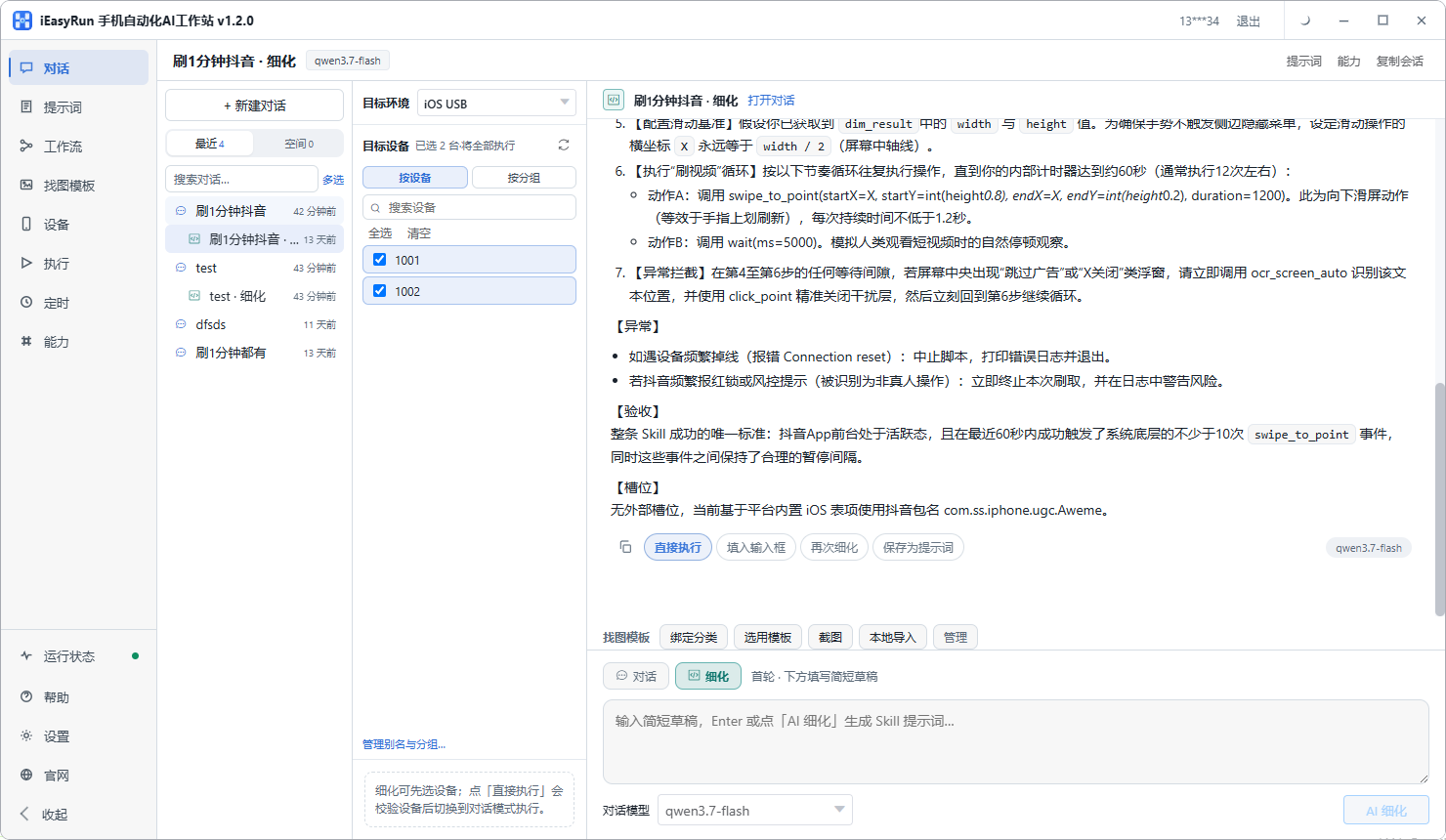
The ten steps become one paragraph of ordinary language:
Open Instagram, tap the plus in the middle of the bottom bar, choose the latest image from the library, tap next and skip editing, type the caption I give you, add the hashtags I give you, set the location to the shop address, keep the default cover, and stop in front of the share button without submitting.
That last clause matters. Leaving an irreversible action like sharing for manual confirmation on the first runs is far safer than letting it run end to end. Remove the restriction once the flow has held for a few days.
Send that paragraph on the conversation page to start bulk posting on Instagram. Use refinement mode the first time. It will ask about the things you left vague, such as which image in the library and whether the hashtags go on a new line, and a loose description comes out as clear steps.
Save the refined version to the Prompts page. Next time you launch a collection, pull it up and change a few words.
Freeze it, and leave the variable parts out
Conversations are for trying. Workflows are for running daily.
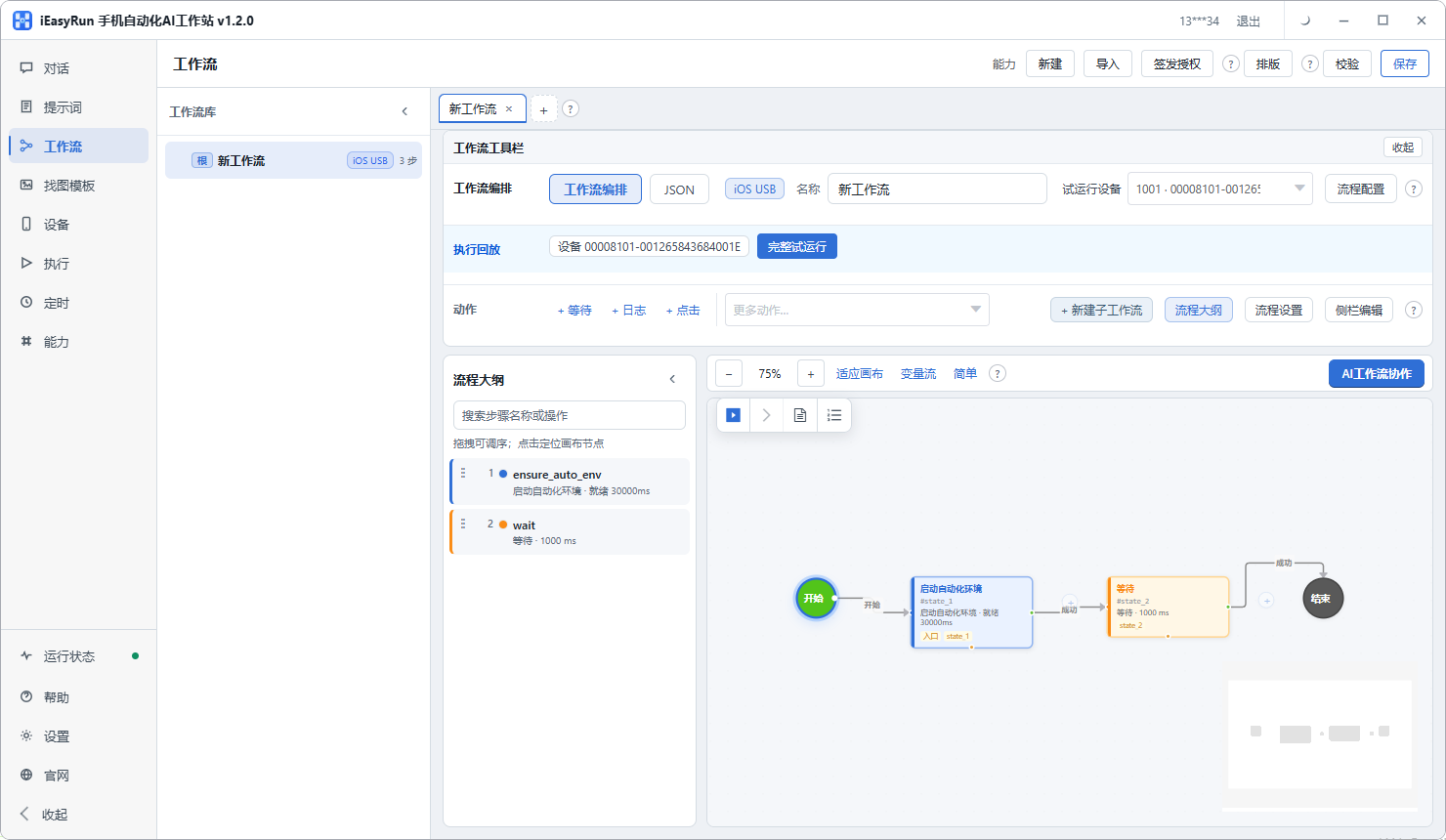
Once the flow holds for several days, save it as a workflow. The canvas shows the same ten steps. Run validate to check the connections and parameters, then test run it on one phone.
The design decision that matters is which values become parameters:
| Parameter | Why |
|---|---|
| Caption | Different every post |
| Hashtags | Varies by collection, and changes within one |
| Cover index | Needed when a post has several images |
| Location | Different accounts map to different places |
With those four left open, one template handles Instagram bulk posting across every account and every post. Hard-code the caption instead and you are back to one workflow per post.
One phone, one account
This step is easy to skip, and worth doing properly.
Eight accounts could be rotated across two phones. Keeping one account per phone is steadier, with the alias set to the account name, so A-series and B-series are readable at a glance.
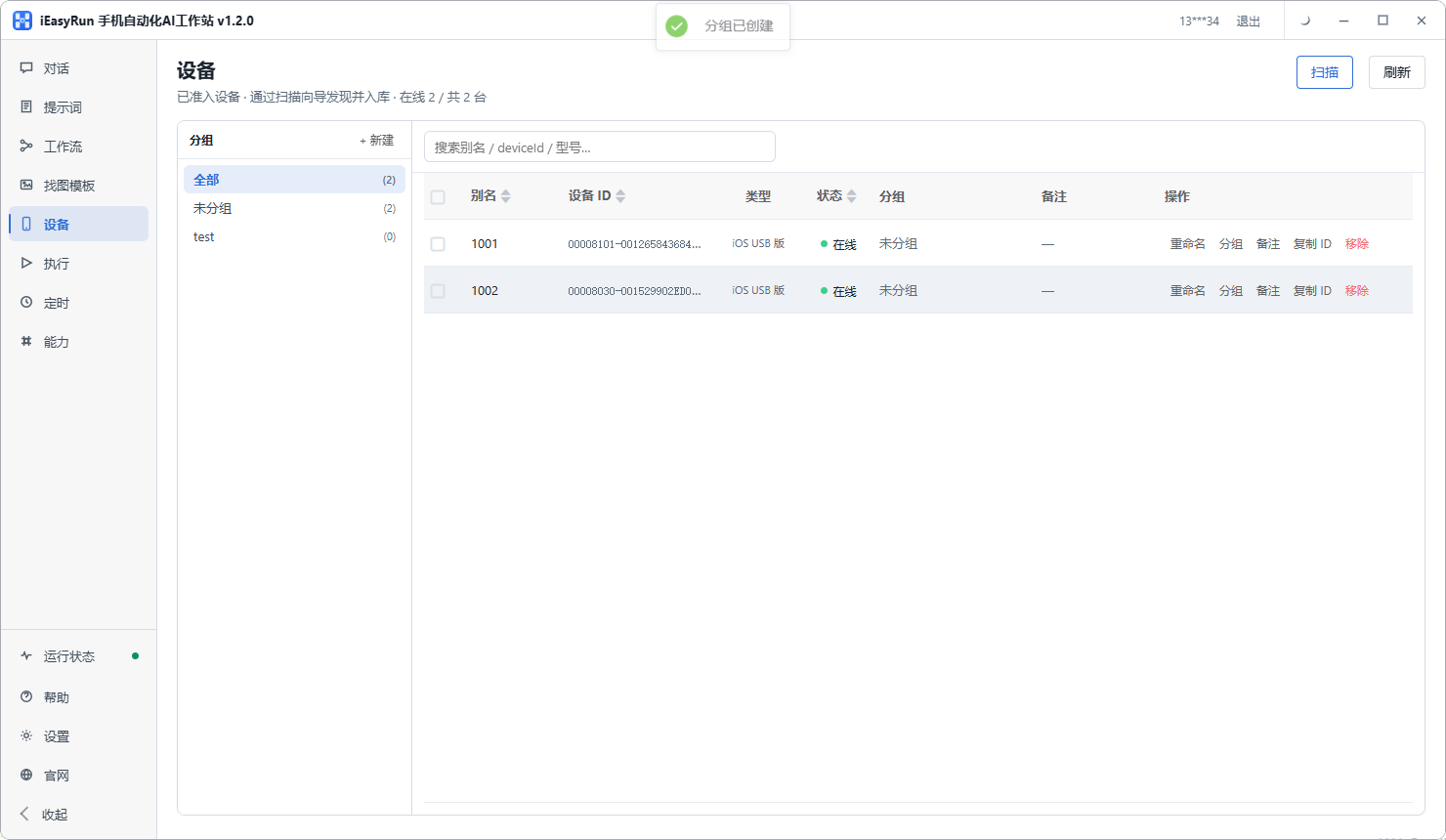
Two reasons. First, posting to the wrong place is expensive. Deleting and reposting is the small part; the account tag structure is the bigger mess. Second, one device cycling through logins in a short window does not look like normal use. That is true whether or not automation is involved. Aliases and grouping are covered in the Devices documentation.
Failures fall into three groups
Once the flow is running, failures fall into three groups. Check Execution History after each round and work through them in this order:
- Device offline in the error, go back to the device page and then to the relevant install page for the USB or WiFi setup
- Image matching or OCR failure usually means a bare icon button, so add an image template for it
- No error but stuck on a step is normally a wait that is too short, with the next tap firing before the screen finished loading. Widen it by a second or two and retry.
One last note on scheduling. With multiple Instagram accounts, spread them out rather than firing them on the same minute. It looks more natural, and when something breaks you can tell immediately whether one account is at fault or the flow itself is.
Back to the jewellery maker. She did not move all eight accounts at once. One account ran for three days, then she copied the template, changed the parameters and added the second. In her words: the thing she used to dread, having to go and post, has left her to-do list entirely. The time goes into shooting new pieces now.
For a single Instagram account posting once a day, doing it by hand is genuinely faster, and there is little point trying to automate Instagram posts at that scale. But with several accounts that need to publish on a schedule, get one account working first and build from there.
Frequently asked questions
- Instagram can be posted to from a browser. Why use a phone at all?
- Because the assets and the publish action both sit on the phone side. Photos and clips you shot on the phone are already in the library, ready to be picked. Going through a browser means moving files to a computer first and back afterwards, and with several accounts you repeat that detour every time.
- How many Instagram accounts can one phone hold?
- The app itself lets you switch between accounts on one device, so there is no technical hard limit. I would still keep one account per phone and spread them across devices. Switching to the wrong account is expensive, and an account hopping between logins on the same device in a short window does not look like normal use.
- Location, hashtags and covers differ per account. Can one template cover that?
- Yes. Leave the parts that change as workflow parameters, such as caption, hashtags, cover index and location. The template only freezes the fixed actions: open the app, pick the image, tap next, fill the fields. Each account passes its own values in at run time.
- How do images reach the library on several phones?
- Use bulk file push from the workstation into each device library. On iPhone you must grant photo library permission first, or the file arrives but never saves. For large batches, push in stages rather than all at once, or you saturate the network.
- Will the same content across several accounts be flagged as duplicate?
- The risk is real. Instagram treats duplicated and reposted material firmly, and pushing one set of images across many accounts raises the odds noticeably. The steadier approach is to give each account its own direction, so assets may share a source but the finished posts differ.
- A post did not go out. Where do I start?
- Check the status and error for that task in Execution History. Three causes cover most cases: the device was offline, a cover or button could not be recognised, usually because it is a bare icon, which an image template fixes, or the wait was too short so the next step fired before the screen loaded. Working through those takes a few minutes.
- Should the accounts post at different times?
- Spread them out rather than stacking every account on the same minute. It looks more natural, and when several fail together you cannot tell whether one device is at fault or the flow itself is.
- I only run one account. Is any of this worth setting up?
- For a single account posting once a day, the app itself is faster and this is not worth the setup. The payoff starts at the second account, and grows with how many accounts you run and how strictly they need to publish on time.
Start with one account
Freeze the posting flow into a template and let each phone run its own
Software is completely free and runs on your own computer.