
A cross-border seller I know told me something last year that stuck with me.
He runs a small appliance business out of Shenzhen, selling into Europe. The business does fine, but he had a persistent problem, and it kept him looking at English app automation options: nobody on his team was willing to touch the back office.
Not incapable. Unwilling. The app is entirely in English, and the words on the buttons look familiar without being certain. One of his operators once changed a setting by mistake and switched the shipping origin for a whole batch of listings back to a domestic warehouse. It surfaced two days later with a pile of customer complaints. After that the team settled into an unspoken rule: if it is an English screen, leave it alone.
His fix was to hire someone fluent. That worked, right up until she left at the end of last year and the capability walked out with her.
The blocker is not English
I do not think the real problem in that story is language ability.
The young people on his team could probably get seven or eight of ten items right by guessing. What actually stopped them was the cost of a mistake. Getting it wrong means unwinding it, and the unwinding path is unfamiliar, so nobody tries a second time.
There are two ways out. One is to train people up, which takes time and chances to practise. The other is to have the party doing the tapping read the screen for itself, so nobody needs to read English.
The second is what AI phone control does.
Two ways of locating a target
This distinction matters, because it is where people go wrong when choosing a tool.
The established approach is element targeting. A script is told to find the control with id publish_button, or to find the element whose text equals Publish, and tap it. It is precise, and it depends on one assumption: the interface has to look the way it looked when the script was written.
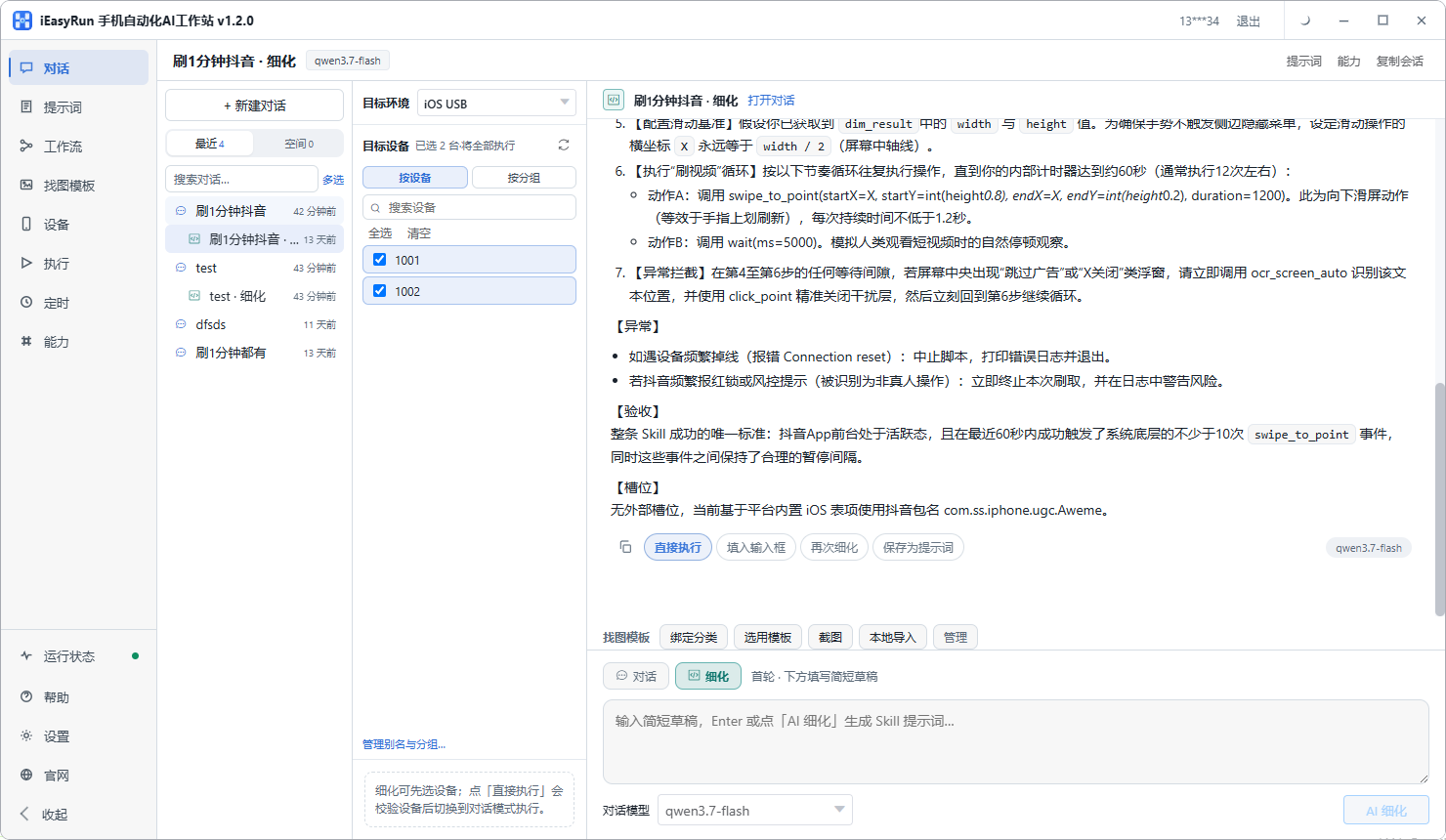
The other approach is reading the screen. It looks at the current screen first: what text is on it, which controls exist, roughly how they are arranged. Then it combines that with what you asked for and works out where to tap.
Here is the difference in concrete terms.
The same app shows a button labelled Publish in English and something else in another language. A script using element targeting fails on the first step, because the fixed text no longer matches. An approach that reads the screen sees a control at the bottom that submits content, and the language does not change what the control is for.
What the vision model adds
Reading a screen in software comes from two things working together.
One recognises text and reads interface controls. The other is a vision model, which looks at the screenshot and judges which part of the picture is the thing you meant.
The second is configurable. On the capabilities page you choose which vision model to use, with your own API key and endpoint.
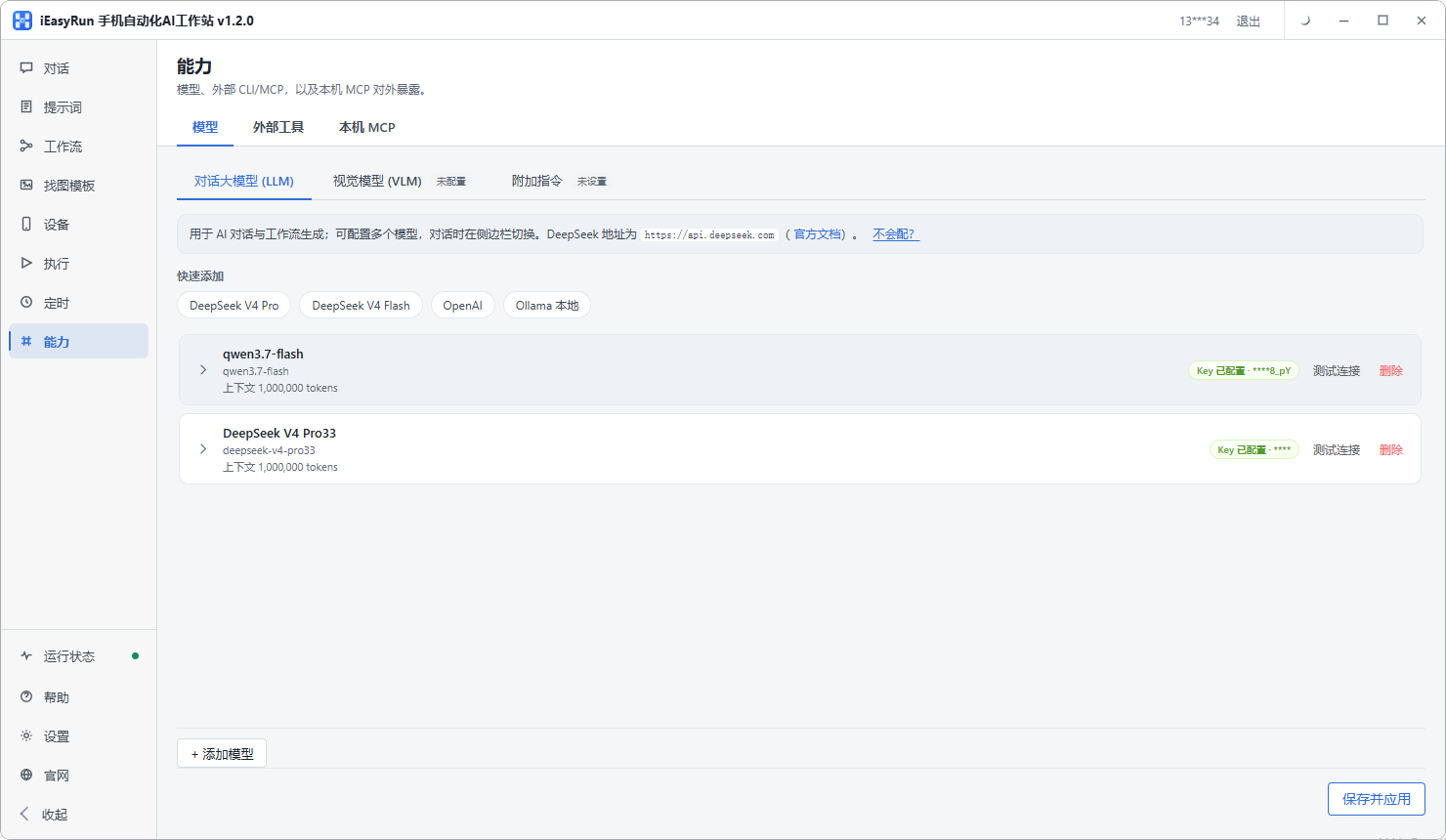
Why configure it separately? Because text recognition alone has nothing to work with on a button that has no text. The vision model covers that gap by looking at the picture.
Describe actions, not interface text
This is the practical key, and it is the thing people get wrong.
Write what to do, not which words are on the button.
This is right:
Open the app, tap the plus in the middle of the bottom bar, pick the first image in the library, set the title to the text I give you, and pause before submitting so I can confirm.
This makes trouble for yourself:
Tap the button labelled Create.
The first survives a language change and a layout move. The second dies the moment that word changes.
Use refinement mode on the first run and let it draw out the details you left out. Stopping before the final irreversible step and confirming manually pays off in the first few weeks, because you are not familiar with that app either. Watching one run tells you where it is likely to trip.
Troubleshooting stays in your own language
People worry that an English interface means English error messages.
It does not. After a run, Execution History reports which step failed, roughly why, and on which device, in the interface language you are using.
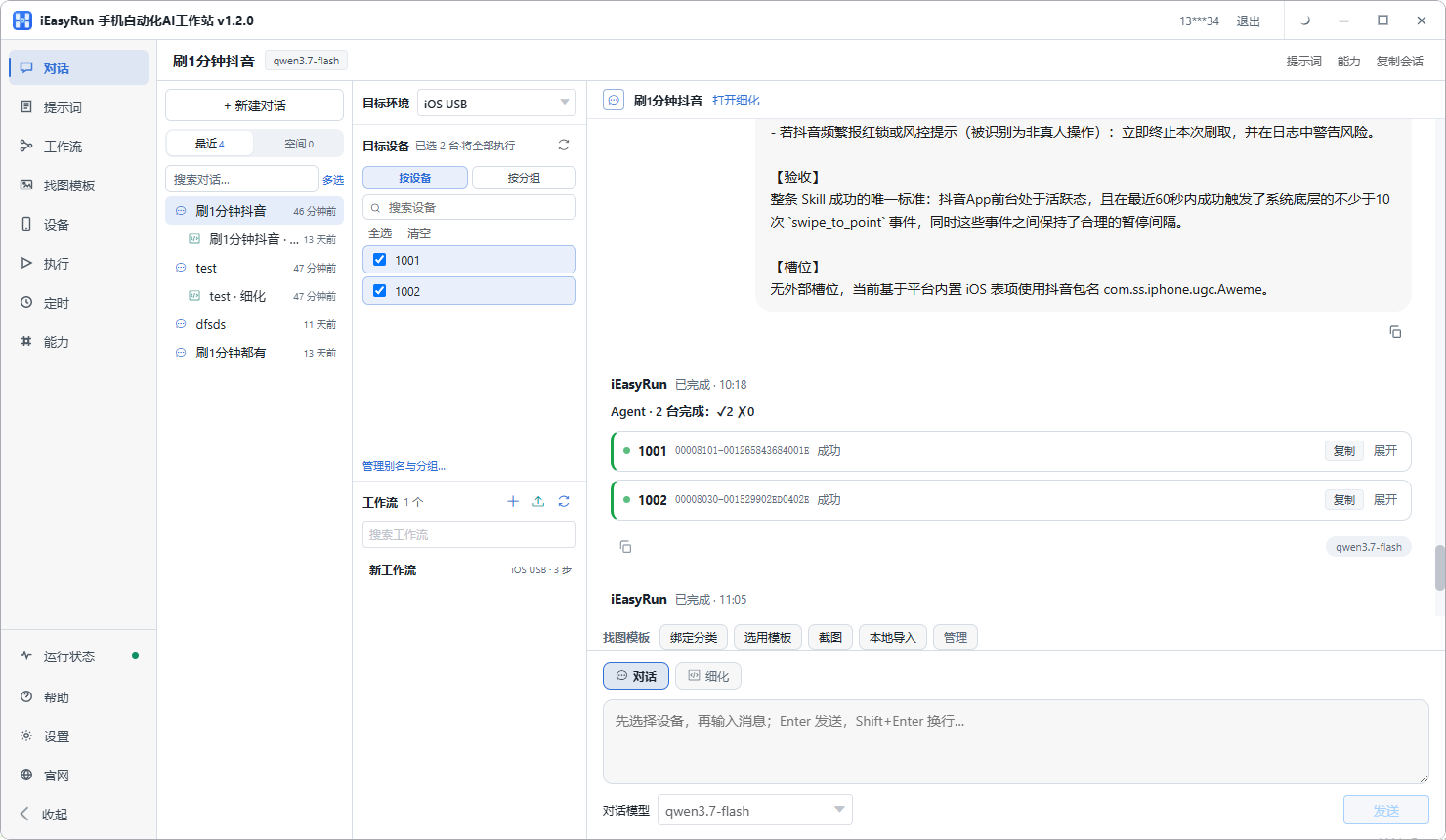
Three causes cover most of it:
- Target not found usually means a bare icon button, so add an image template with a crop of it
- Tapped but nothing happened means the wait was too short, with the next tap firing before the screen loaded. Widen it and retry
- Device offline has nothing to do with interface language, so handle it on the device page
So with English app automation, the one thing you genuinely have to learn is how to describe your own process clearly. Language ability does not come into it.
The boundary, stated plainly
Worth being straight about this.
The system does not translate, and it will not tell you whether your English copy is any good. What it does is read what is on the screen and carry out the actions you described. So:
Whether the cross-border copy reads naturally is still a person job. What to say to a customer is still a person decision. It handles execution, not judgement.
Back to the seller I mentioned. His arrangement now: he writes the copy himself, since his English is decent, and hands execution to the computer. His summary was accurate: he used to hire someone who could read the interface; now the tool reads it and the people write content.
If the back office of an overseas app is something you have been avoiding, connect one phone using the install selection page and start with the least risky flow you can think of, such as opening an app to read the order count for today without changing anything. One clean run tells you where the limit is.
Frequently asked questions
- Does this translate the English interface into another language?
- No. It does not translate, it recognises and executes. It works out what a button says and roughly what it means, then decides where to tap. You do not need to read the English, and it does not convert the screen into your language for you.
- How does it recognise buttons on an English interface?
- Two things working together: recognising the text on screen and reading the interface control information, plus a vision model looking at the picture. The judgement is based on what is actually on the screen, not on coordinates written in advance.
- Why do scripted approaches break when the language changes?
- Most scripts locate elements by identifier, class name, or a fixed piece of text. Change the interface language and that fixed text no longer matches, so the script fails at the locating step.
- Do I need two flows if an app ships both an English and a Chinese version?
- No. A good description names the action, such as tap publish or pick the first image, rather than the words on the button. The interface language can change without the flow being rebuilt.
- What about abbreviations and industry terms on English screens?
- Most are fine, because it reads the whole screen as context rather than one word in isolation. For bare icons or terms specific to your industry, add an image template with a picture of the button so it does not hesitate.
- What happens when the interface is redesigned?
- Better than coordinates written into a script. It reads the screen again, so controls that moved are still found. If a button moved to a different screen, or an entry point was replaced, the step order needs adjusting, and that is a person job.
- When recognition fails, is the error message readable?
- Execution History reports in Chinese by default in the interface language you are running. It states which step failed and roughly why, so troubleshooting does not get harder because the app is in English.
- I do not read English at all. Can I set this up myself?
- Yes. Two things are required of you: describe the flow in your own language, and watch it run once on the phone to confirm the actions are right. No English reading is involved. The real prerequisite is knowing your own process well.
Describe it in your own language
You describe the task; it executes inside the English interface
Software is completely free and runs on your own computer.