The man who replaced half his fleet
Early this year someone running a short-video matrix came to see me. Half his devices had been swapped out.
The conclusion first. HarmonyOS automation now covers the full flow; HarmonyOS cluster control handles grouping, device intake and group dispatch; Android iOS HarmonyOS automation can share a single setup; the ability to control phone from PC works over a cable; and the logic of AI phone control holds just the same.
He used to run twenty-odd older iPhones with a fixed routine: cable to the computer, mirroring on screen, scripts running to a schedule. Then several died in the second half of last year, right when he wanted to try new hardware. He moved to Huawei, and to HarmonyOS Next. He had been shopping for phone automation software for weeks and never once considered a HarmonyOS column in the comparison.
The phones then sat unused for a month. Not because they could not work, but because he did not know whether his existing setup still counted on a different system. So let me lay out this route.
What you can and cannot copy from iOS
The connection works the way iOS USB does, over a data cable. What you install, and what you tick in the downloader, are different.
The work itself is the same as anywhere else. The AI reads your instruction, plans the steps, taps, swipes and types on a physical phone, and records the result. Devices can be added to the list, given aliases and grouped, and tasks can be dispatched by group.
What does not transfer from iOS is the installation. This route is newer, and most mistakes happen right there.
Two things to sort out before installing
Turn off protection first. Antivirus, the real-time protection in Windows Security, and temporarily the firewall. The downloader, console and workstation all get flagged, and the symptom is an install that stalls halfway or software that will not open once installed.
Then get the cable right. It has to carry data. The cheap kind with only power cores charges the phone while the computer never sees it. If you plan to control phone from PC, that cable is the first hurdle.
The same logic applies when you pick phone automation software. Whether devices are detected reliably deserves checking before anything on the feature list.
When the console status stays red, do not blame the phone
The most common thing to hit after installing: the console opens with a red status bar.
Almost everyone assumes the phone is at fault. Usually the computer is missing the VC runtime. Install it through the downloader, restart, and open the console again. The status normally clears.
Skip this and you get stuck later on a workstation that cannot find the device however many times you scan, and the symptom looks like a phone problem, so it sends you looking in the wrong place.
Two things to do on the phone
Developer mode has to be on, similar to Android. When you connect the cable, a debugging trust prompt appears, and you tap always trust.
Then install the phone-side program. As with iOS, this is what makes the phone available to be driven. While you are there, switch on the keep-alive options so the system does not clear it out of the background.
One step is easy to forget. In the console licence centre, bind your code and set the licence type to USB device licence. Before that, the device is detected but misbehaves once you actually run something, and the reported error does not necessarily point at licensing.
Scanning from the workstation
Open the devices page in the workstation, hit scan, and make sure the scan scope is set to the HarmonyOS USB build. Choosing wrong here looks like a spinner that never stops.
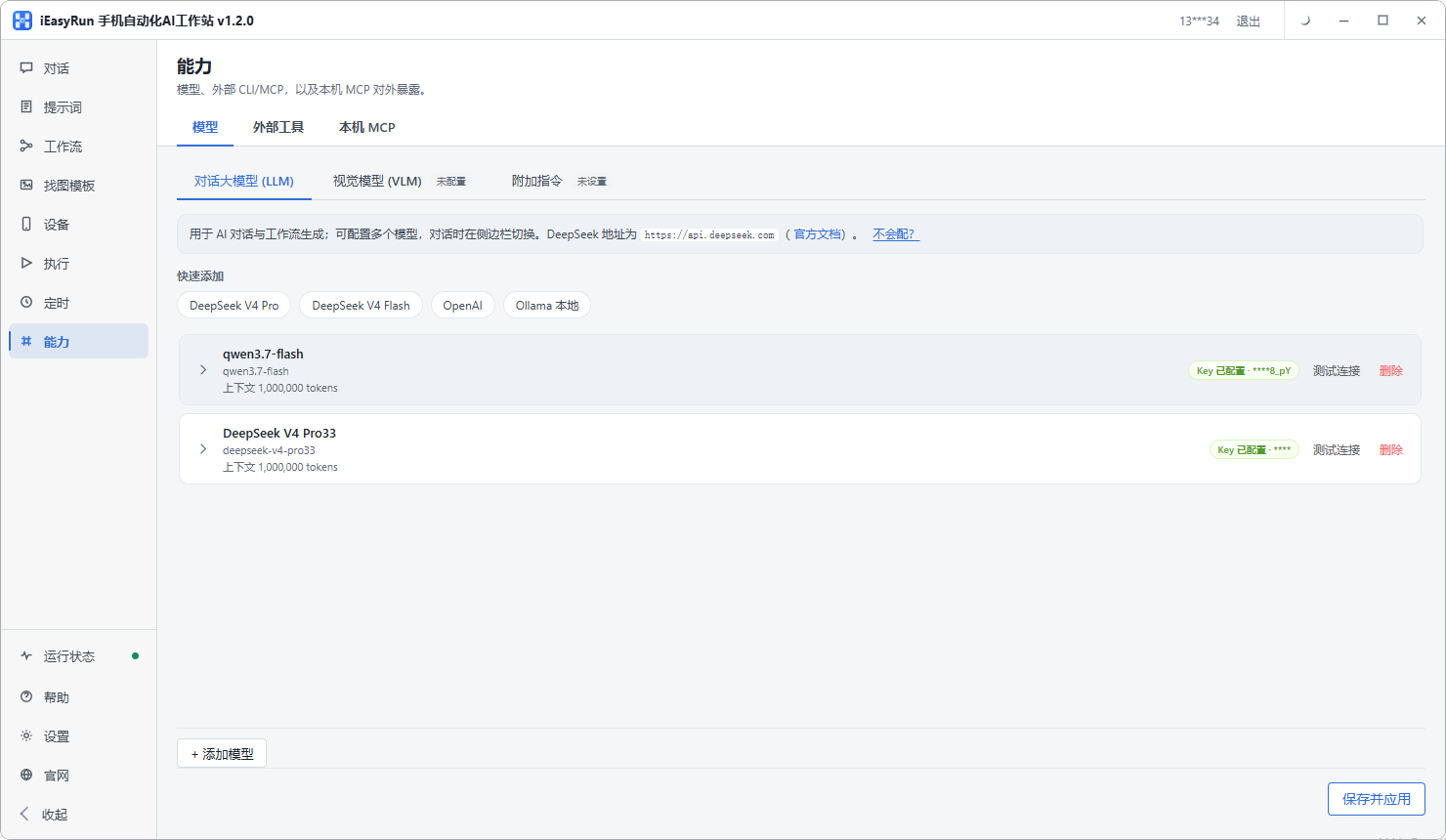
Once the phone appears, do three things: add it, give it an alias you will recognise, and put it in a group by business. This is also where HarmonyOS cluster control starts to mean something, since selecting a group and dispatching one task to all of them is the whole point.
Aliases seem pointless with one device and become essential at fifteen. I have seen someone name twenty phones Android1 through Android20 and then spend two days working out which was which.
Grouping a mixed fleet
HarmonyOS, iOS and Android in one studio is normal. The devices page keeps all three in a single list, so selecting a device never means switching screens.
Group by business, not by system. Grouping by system looks orderly and works against you in practice, because when you push a batch of content what matters is which project those accounts belong to, not which brand the phone is.
The only real difference is the connection. HarmonyOS and the iOS USB build come in over a cable, while Android and the iOS wireless build join over the same Wi-Fi. Install each one its own way, and afterwards they are identical in the devices page.
That is what makes Android iOS HarmonyOS automation realistic in one setup: the task layer on top does not change. Only the way each phone joins from below does.
When this route is worth taking
The test has nothing to do with tooling.
If a job runs dozens of times a day and takes a minute or two each time, it is worth connecting whether you own two HarmonyOS phones or twenty. Two phones still save real hours.
If it runs once a week, connecting it is a loss. Configuring the environment and building the flow costs far more than doing it by hand. Describe it in a conversation, run it once, and move on.
What deserves a fixed flow is work that repeats every day with steps that barely change. Build that into a workflow and it runs to a schedule while you read the execution history.
How many he ended up connecting
I told him not to connect all three at once. Pick the least busy one, walk the whole installation, and get a single job running end to end.
He finished in an afternoon and attached one daily inspection task the next day. After a week he connected the other two himself.
Something he said afterwards stuck with me. The hard part was never HarmonyOS. It was that he assumed changing systems meant relearning everything. In practice only the installation step is new. The AI phone control layer above it takes instructions exactly the same way on all three systems.
Frequently asked questions
- Does a HarmonyOS phone need rooting or anything unusual for automation?
- No rooting. You enable developer mode on the phone, tap always trust when the debugging prompt appears over USB, and install one phone-side program. On the computer you install two things, the HarmonyOS Next control and mirroring build plus the AI workstation. It is a cable setup like iOS, only the items you tick are different.
- Why can I not just follow the iOS installation steps?
- Because the downloader ticks different products and installs different packages. HarmonyOS needs HarmonyOS Next and the AI workstation selected on the welcome screen, which installs the HarmonyOS Next control and mirroring build. iOS installs a different console. The classic symptom of following the wrong steps is a workstation that never finds the device no matter how often you scan.
- The workstation cannot find my HarmonyOS phone. What do I check first?
- Check the console. If its status bar stays red, you are most likely missing the VC runtime, so install it through the downloader and restart the computer. That resolves most cases. After that, confirm the debugging trust prompt was accepted, and that the cable actually carries data rather than power only.
- Will HarmonyOS and iOS phones get mixed up in one list?
- No. Once a phone is scanned and added on the devices page, given an alias and placed in a group, both systems sit in the same list. Group by business rather than by system. Grouping by system looks tidy and gets in your way when you are working, because what you care about is which project an account belongs to.
- Can HarmonyOS be run as a cluster, or only one phone at a time?
- As a cluster. Once devices are in the list you can select a group and dispatch a task to it in one go. That is what separates HarmonyOS cluster control from tapping around on a single phone. One phone is casual; several dozen without grouping and aliases means your time goes into finding devices.
- The HarmonyOS interface differs from Android. Will the AI fail to find entry points?
- That is where AI beats a fixed script. A script records coordinates and a control path, so a layout change sends you back to edit it. The AI reads what is on the screen and what the labels say before deciding where to tap, so an entry point that moved is still found.
- Is the whole setup worth it for one or two HarmonyOS phones?
- It depends on how often the job runs. Something that happens dozens of times a day is worth it even on two phones. Something that happens once a week can just be described in a conversation and run once, with no flow to maintain.
- How do I confirm the HarmonyOS phone really executed?
- Open the execution history for the run. It records the target device, status and any error. Check every record early on, because this route is still new and reading a few runs is how you build trust in it.
Got a HarmonyOS phone?
Connect one and see, the steps are not shared with iOS
The software is completely free and runs on your own computer. HarmonyOS comes in over a cable, so do not follow the iOS steps.