iOS Wireless / Wi‑Fi
iOS wireless edition install guide
Powered by EasyClick: install wireless center + iEasyRun → IPA on phone → license & init → scan Wi‑Fi devices, then control the phone with AI over Wi‑Fi. Daily use is wireless; USB is still needed for license / flashing images.
Before you install — turn off protection (important): Disable antivirus, Windows Security (real-time protection, etc.), and temporarily turn off the firewall.
Enable Developer Mode on iPhone (required): go to Settings → Privacy & Security → Developer Mode, turn it on, and restart when prompted. Without it, the automation service may fail to start.
- Step 1
Open the downloader and select products
On the welcome page:
- Identity: Ordinary user
- Platform: iOS Offline
- AI Workstation: AI Workstation
Then click Next.
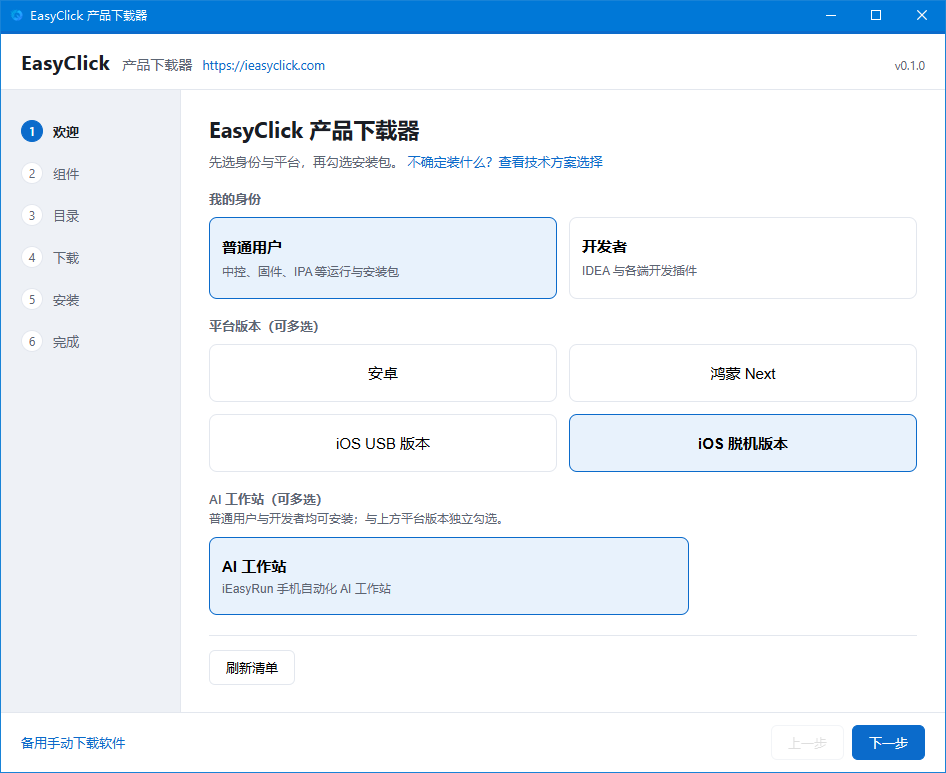
Fig. 1 · Select iOS Offline and AI Workstation - Step 2
Check the install components
Check these three:
- iOS developer image package
- iOS offline wireless center (license, init, flash images)
- iEasyRun Mobile Automation AI Workstation
Then click Next.
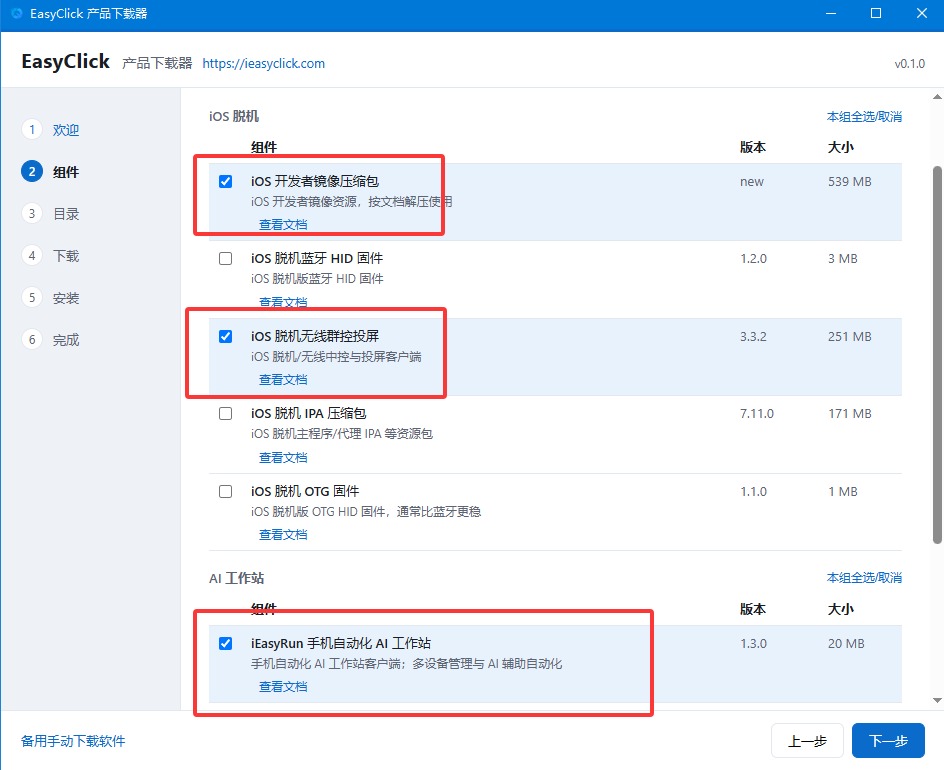
Fig. 2 · Check images, offline center, iEasyRun - Step 3
Confirm the install folder
The default path is fine—confirm and continue.
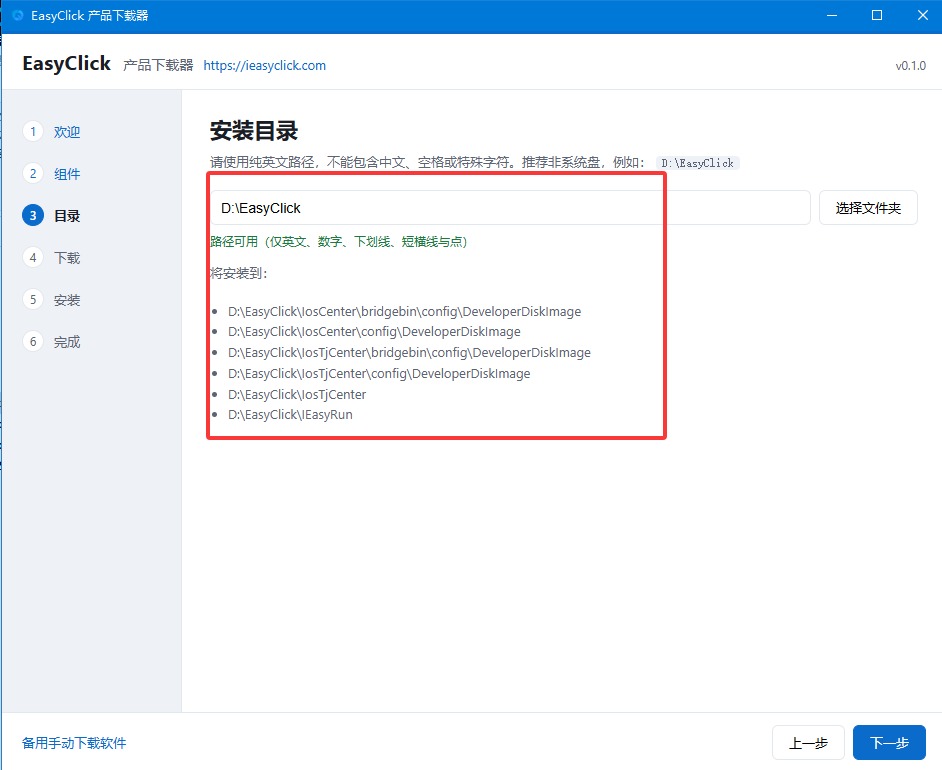
Fig. 3 · Confirm install folder - Step 4
Wait for software download
Keep the network stable until batch download finishes.
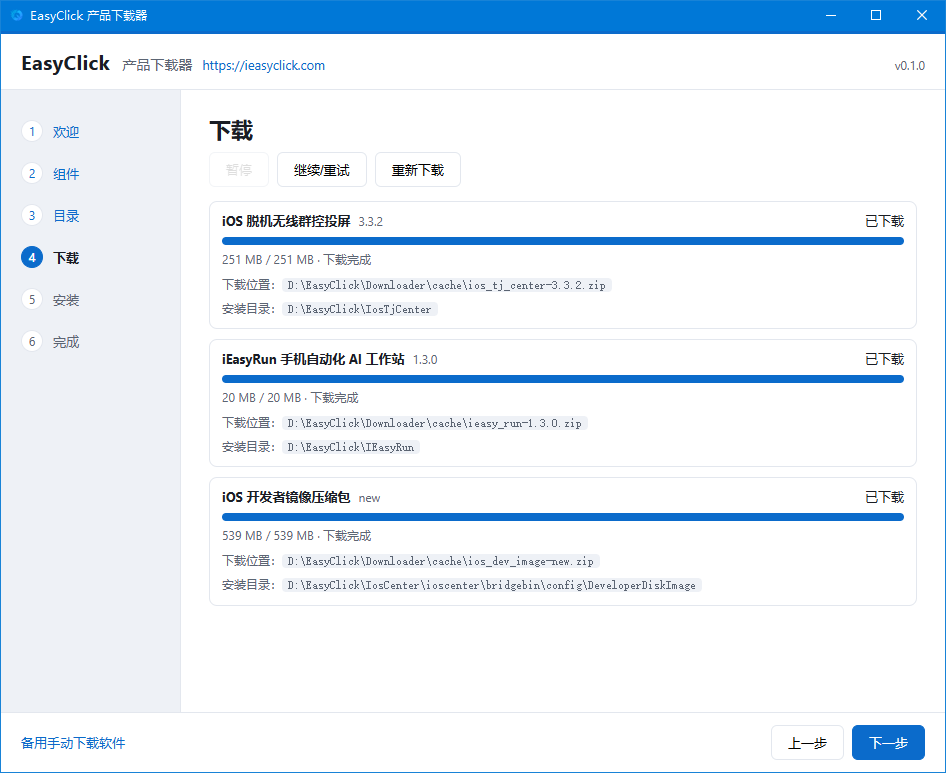
Fig. 4 · Batch download - Step 5
Finish install from the prompts
Follow on-screen install. Use Open folder to see where each product was installed.
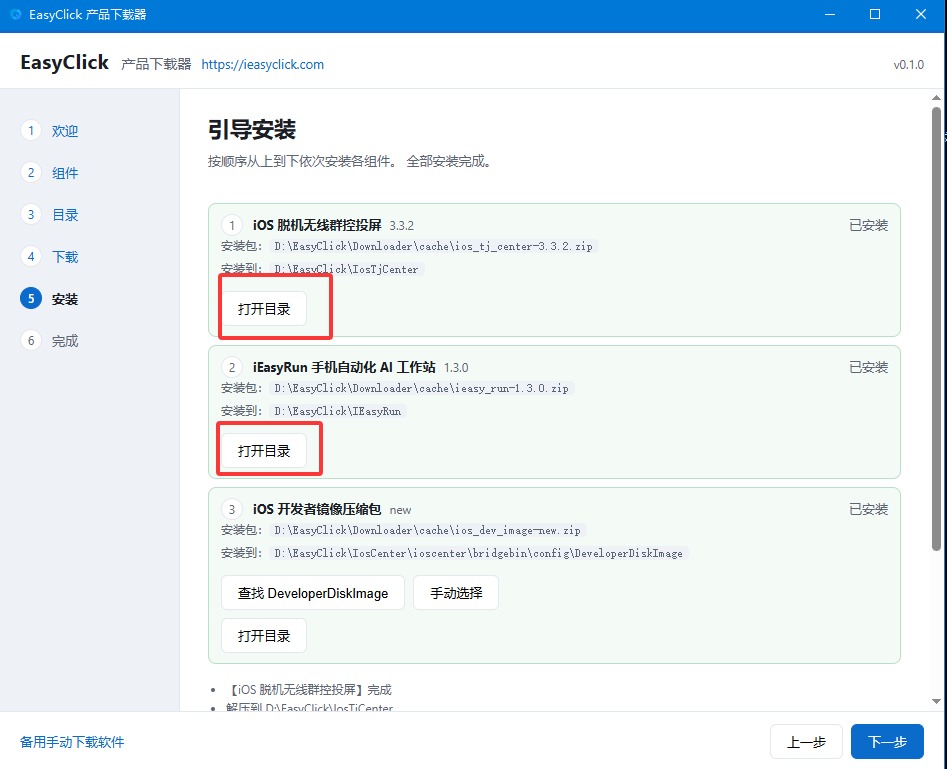
Fig. 5 · Install complete - Step 6
Download the offline main-app IPA
Download the main-app IPA from EasyClick:
- Area: community/download_area
- Direct: ec-tj-mainapp
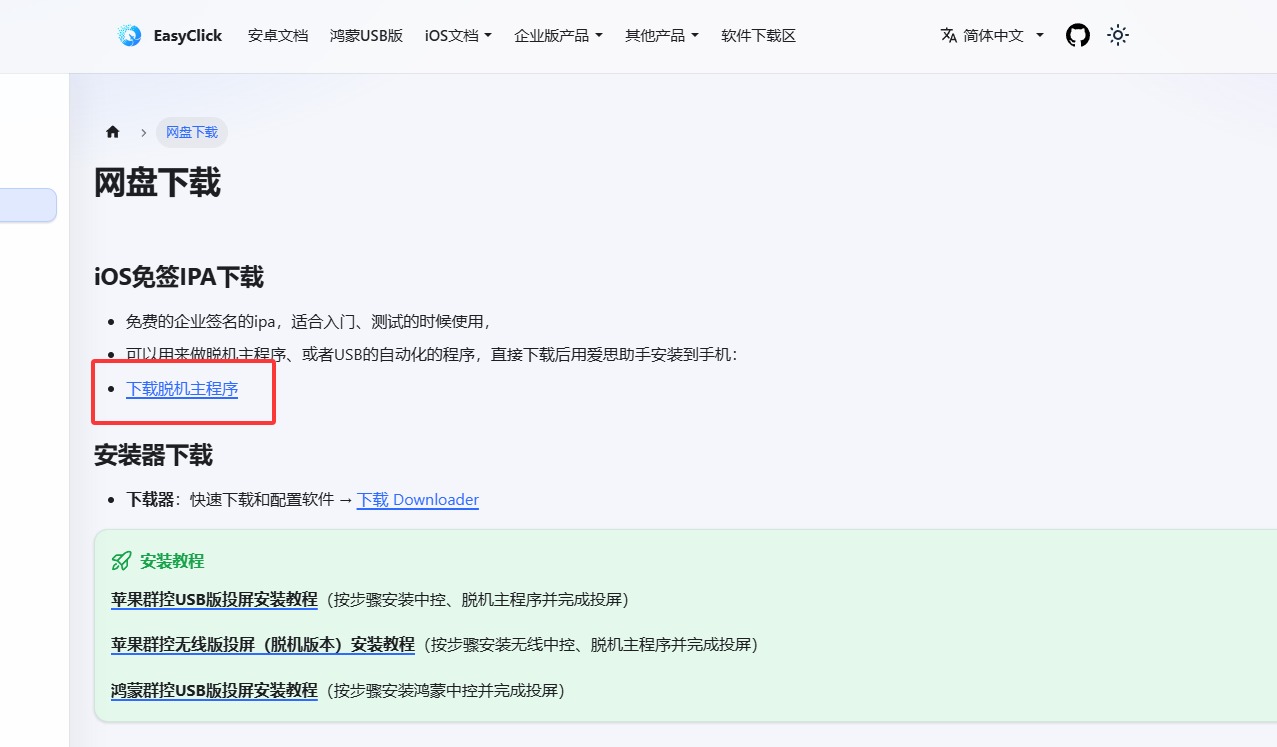
Fig. 6 · Download main-app IPA - Step 7
Install with AiSi Assistant
Install AiSi (i4.cn), USB-connect iPhone, tap Trust.
AiSi → Apps → Import & install → select the IPA.
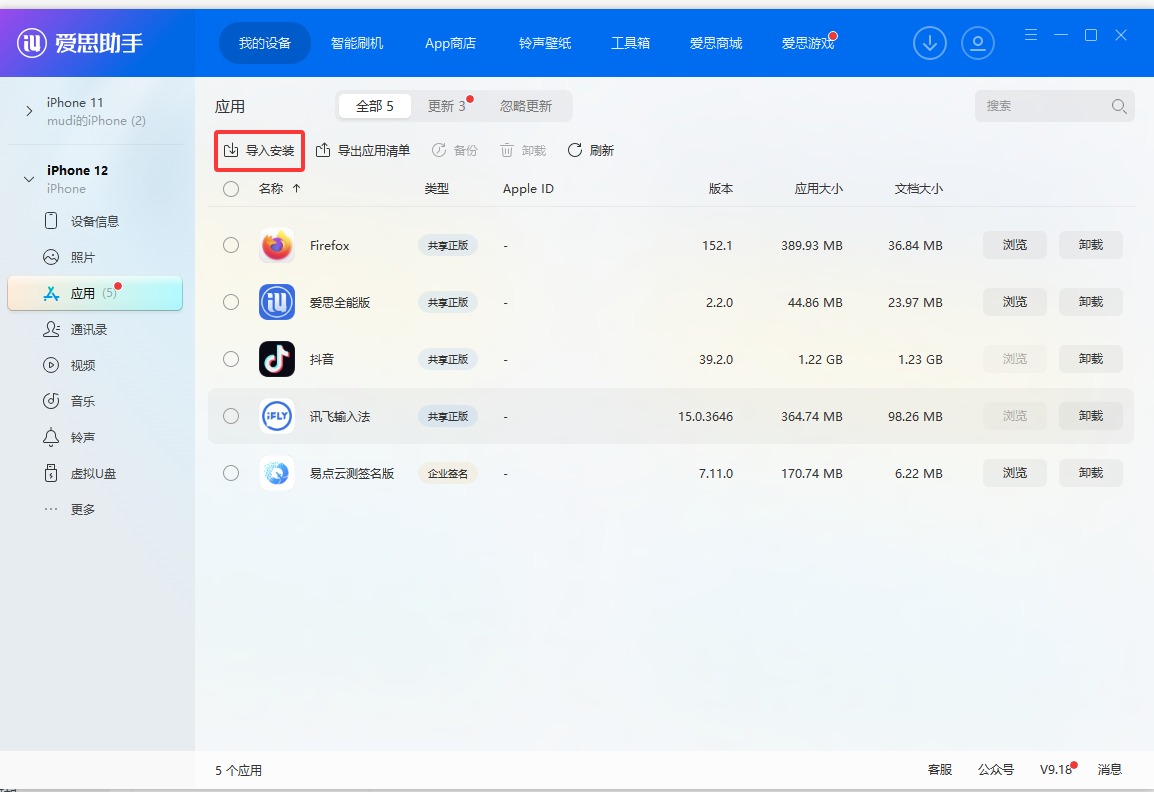
Fig. 7 · AiSi import/install IPA - Step 8
Trust the app and grant permissions
- Settings → General → VPN & Device Management → trust the enterprise app
- Open the app; allow prompts or use App settings → Permission grants
- Float window too large: App settings → Keep-alive → thinner style → Save; check all three keep-alive options and enable Photos
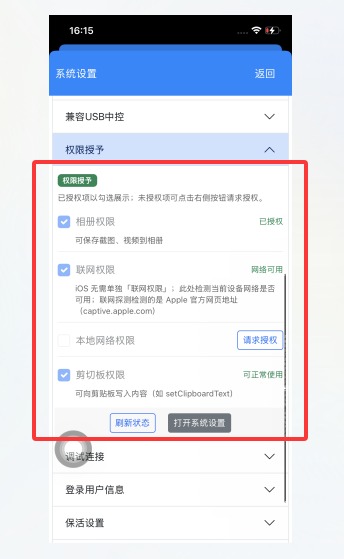
Fig. 8 · Trust app and permissions - Step 9
Run the offline wireless center
Open the offline wireless install folder and double-click tjcenter-new.exe.
- No account: register
- Existing EasyClick / iEasyRun account: sign in (shared)
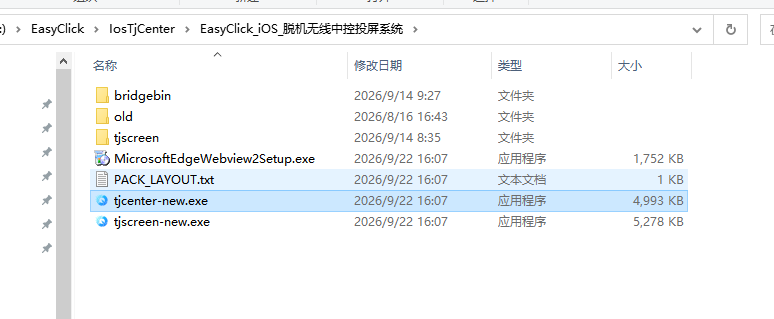
Fig. 9 · Double-click tjcenter-new.exe - Step 10
See the device in Offline Activator
Open Offline Activator, connect via USB, then purchase a license from official/reseller channels.
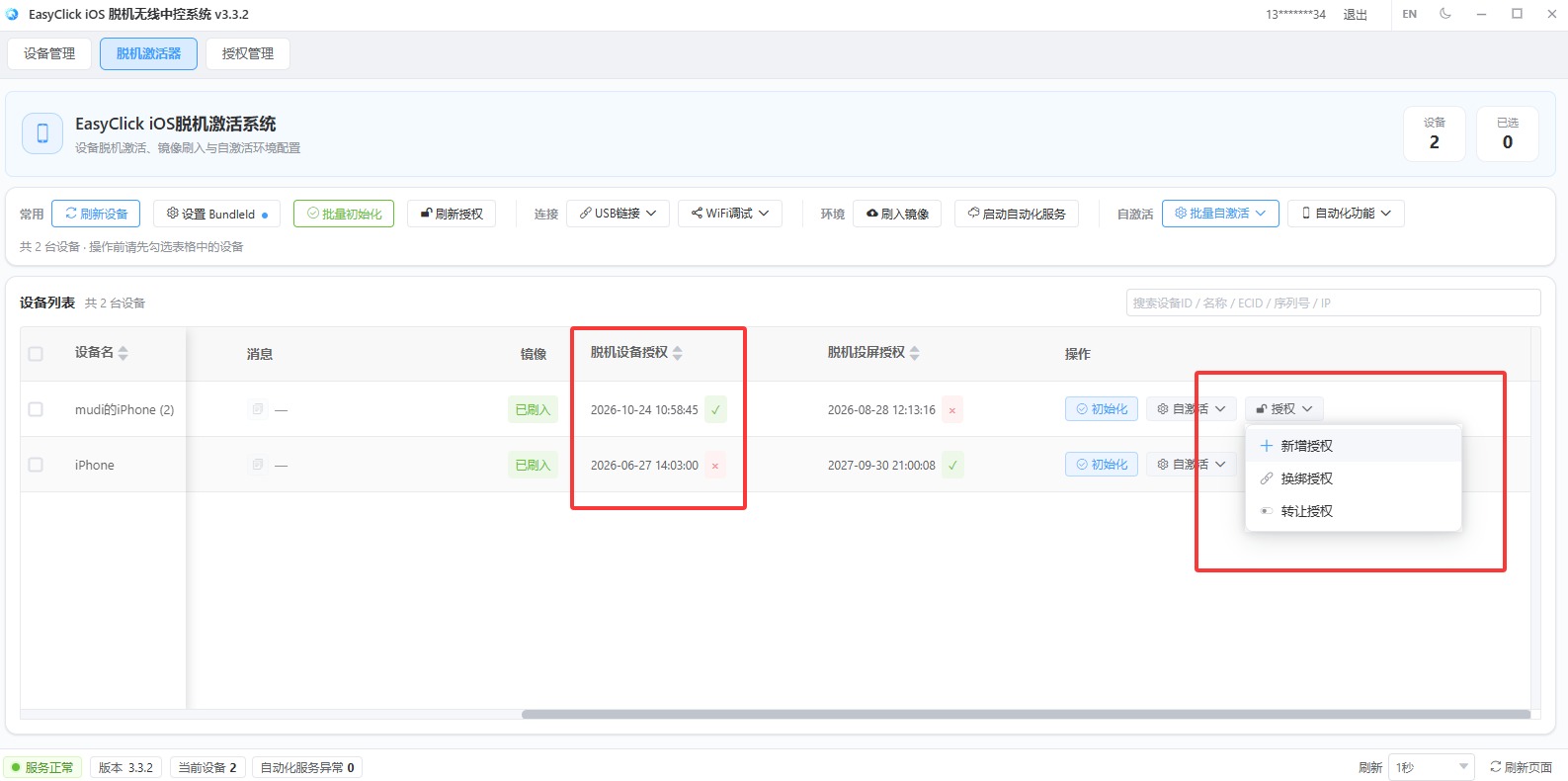
Fig. 10 · Offline Activator and license entry - Step 11
Bind “Offline device license”
When binding, set license type to Offline device license (脱机设备授权)—not USB device license.
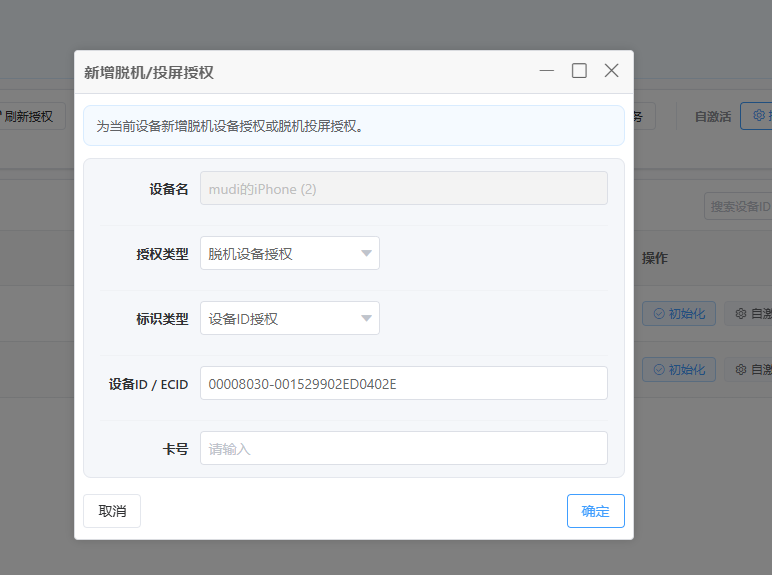
Fig. 11 · Choose offline device license - Step 12
Set BundleId and batch initialize
- Set BundleId, commonly
com.ieasyclick.ecauto2598922706(or copy from AiSi apps) - Save
- Select device(s) → Batch initialize
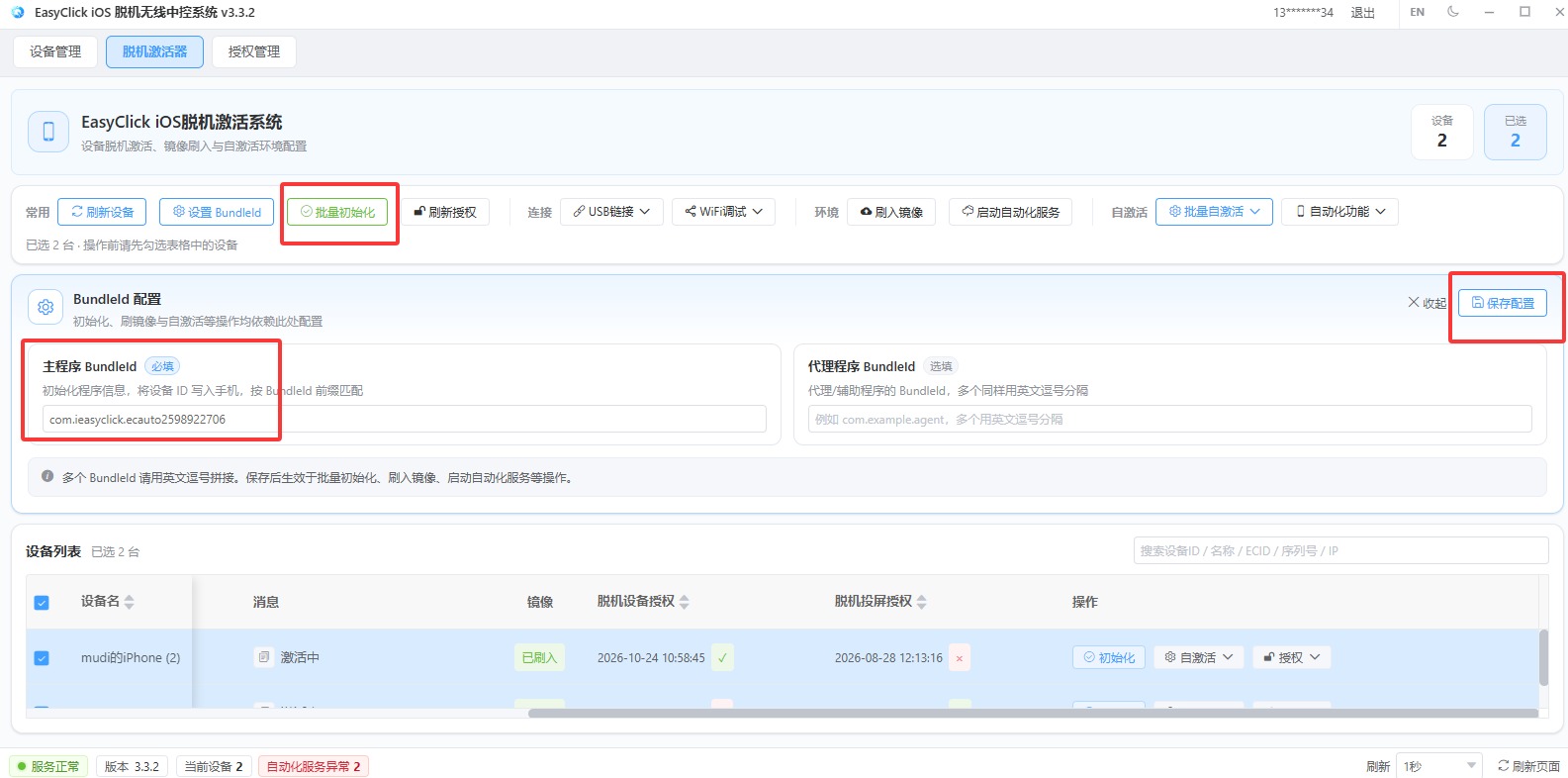
Fig. 12 · BundleId and batch init - Set BundleId, commonly
- Step 13
Confirm license info in the app
After init the app opens. In App settings, confirm user + valid time. If missing, reboot phone + center and initialize again.
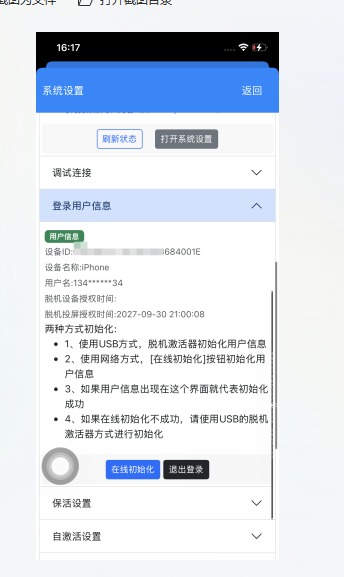
Fig. 13 · Confirm license in App settings - Step 14
Run iEasyRun
Double-click iEasyRun-AI-Agent.exe. If it will not open, run MicrosoftEdgeWebview2Setup.exe first.
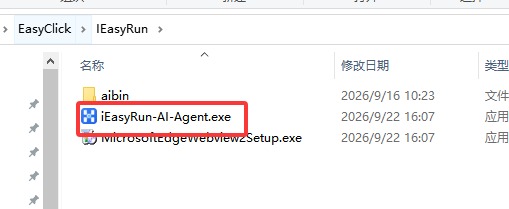
Fig. 14 · Double-click iEasyRun-AI-Agent.exe - Step 15
Sign in to the workstation
Register or sign in (EasyClick iOS accounts work too).
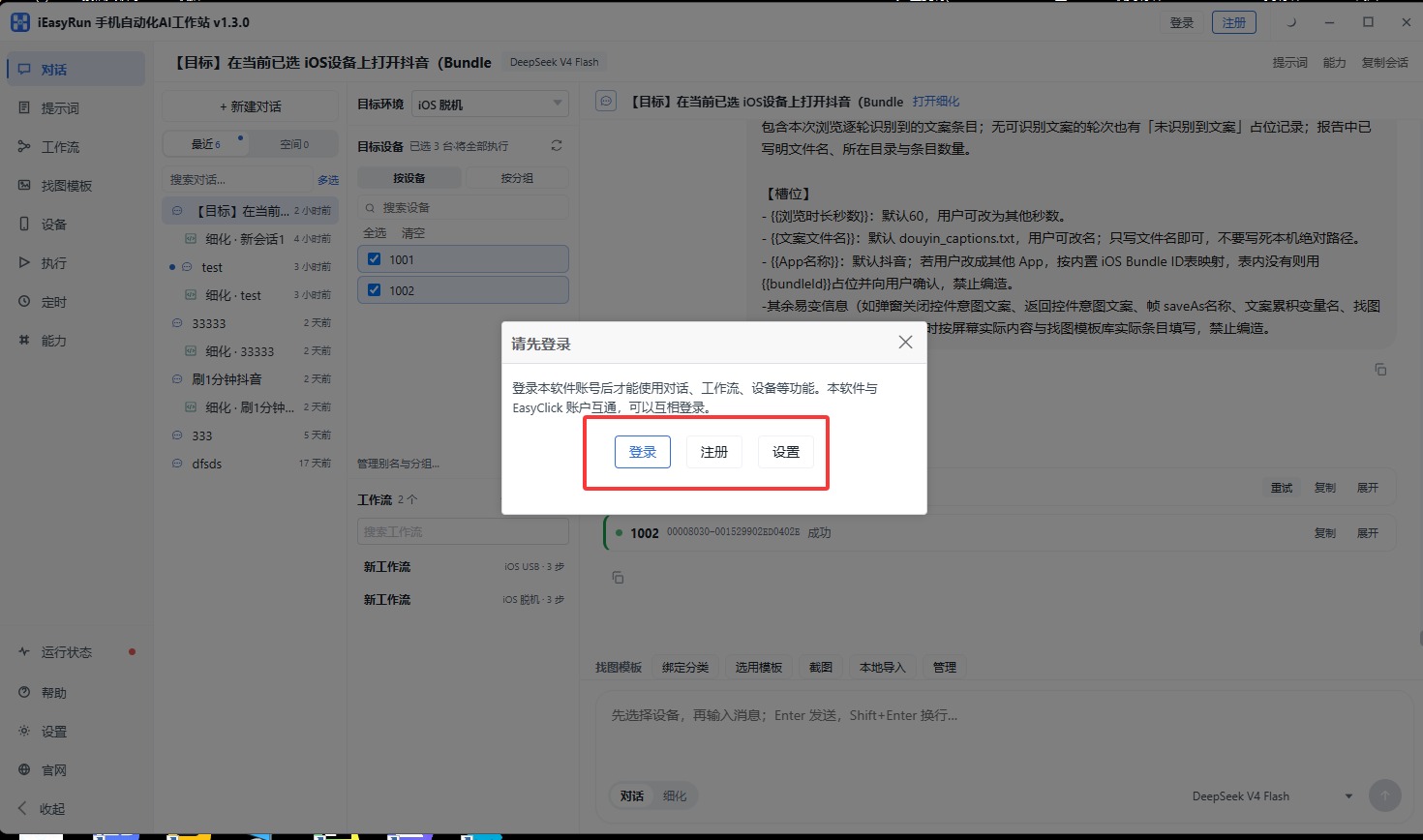
Fig. 15 · Sign in to iEasyRun - Step 16
Open Devices and scan
Go to Devices → Scan.
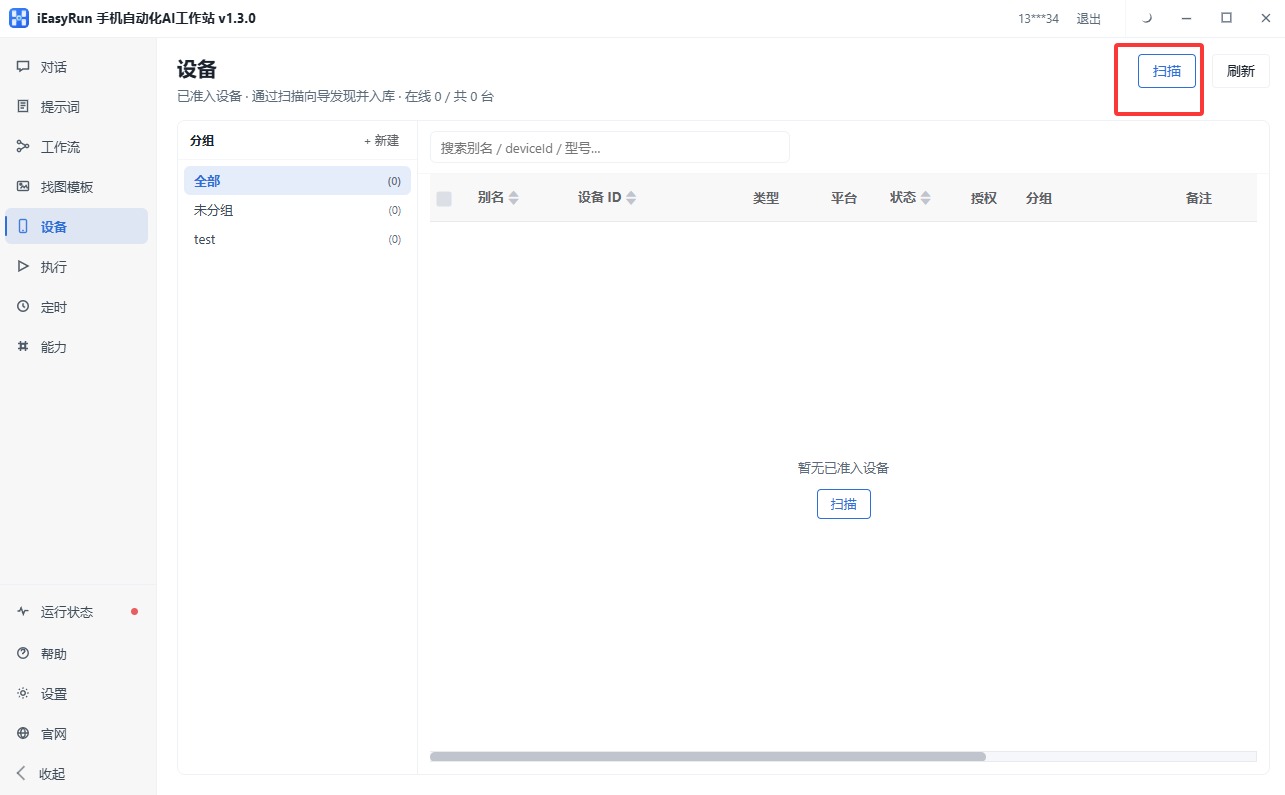
Fig. 16 · Devices scan - Step 17
Choose “iOS Offline”
Select iOS Offline (wireless). Phone and PC must be on a reachable LAN; open the offline main app; pick a subnet → Start scan.
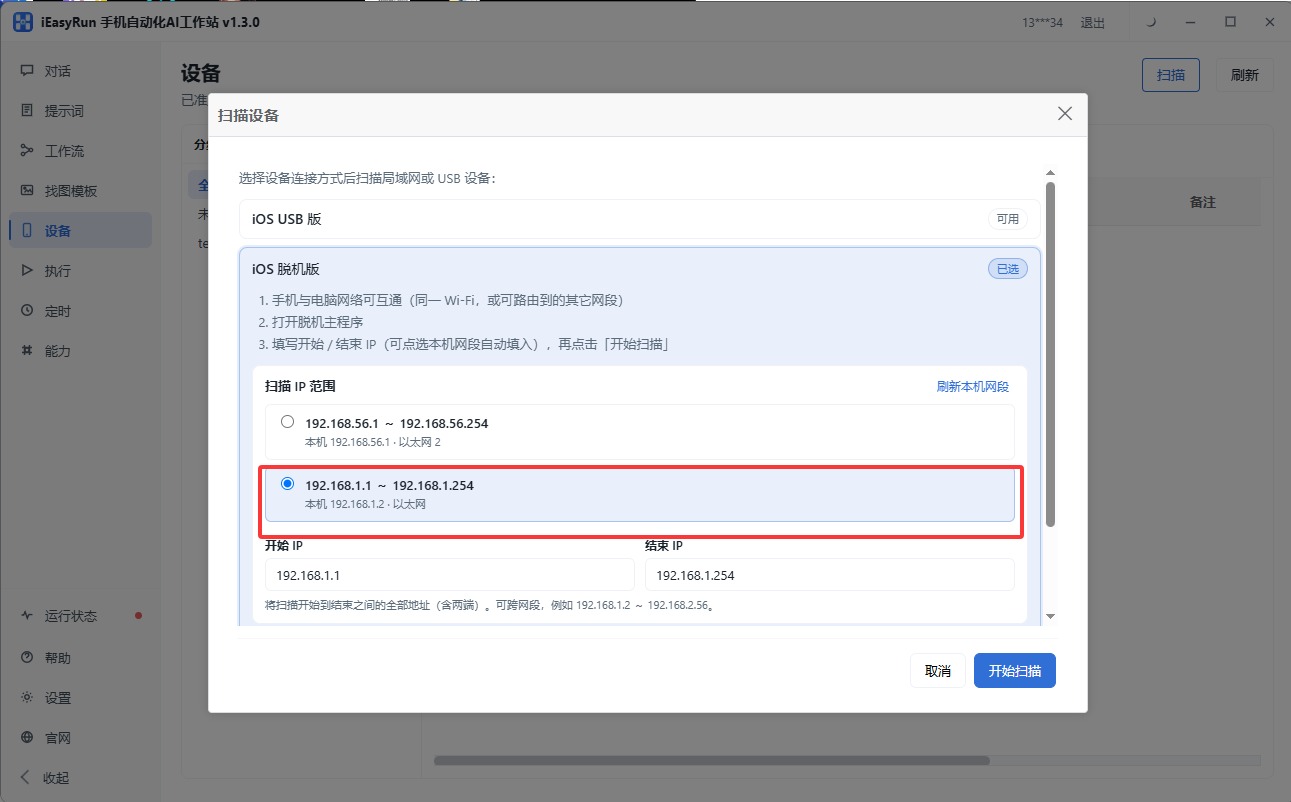
Fig. 17 · Scan as iOS Offline - Step 18
Add the device to the list
Add discovered devices to the list.
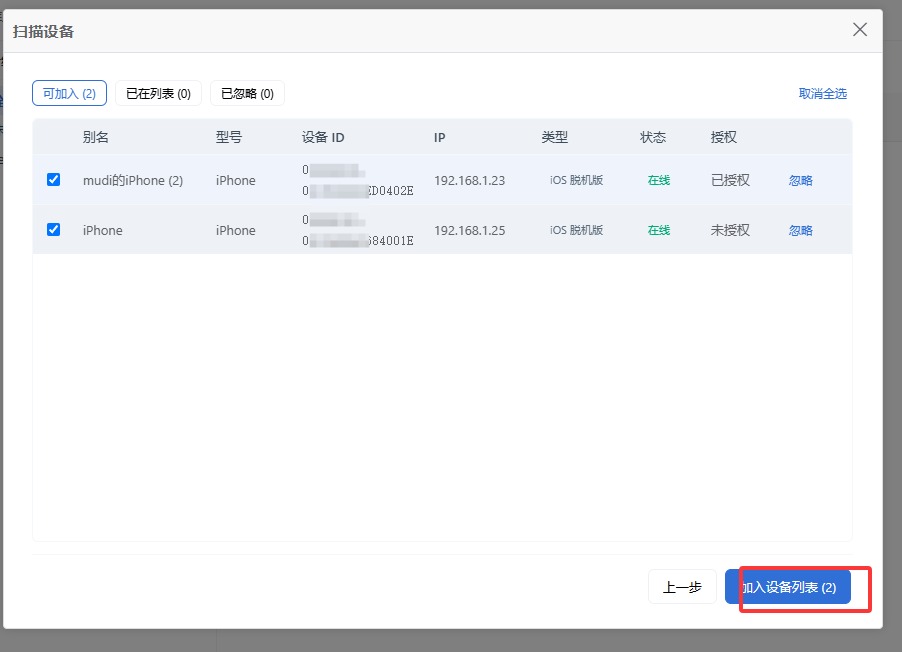
Fig. 18 · Add device - Step 19
New chat with offline device
In Chat, create a session, choose iOS Offline, and pick the device.
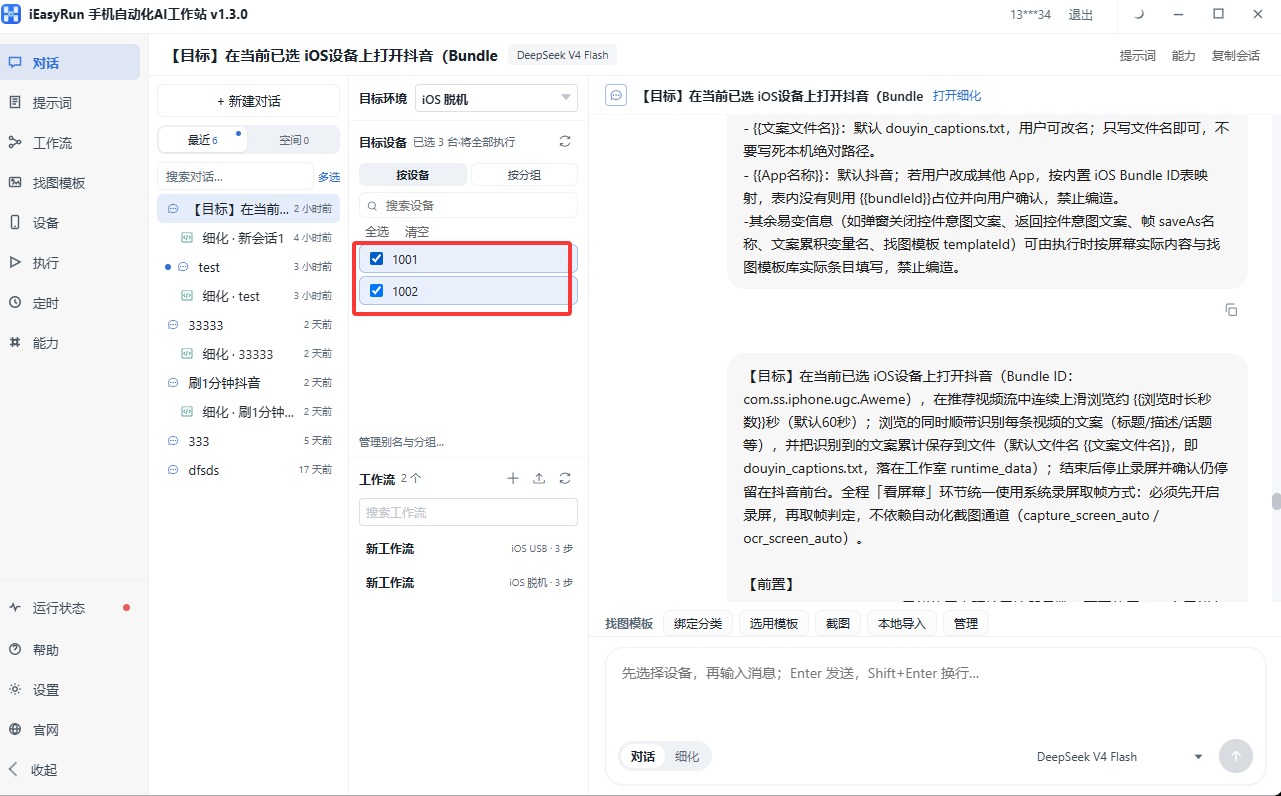
Fig. 19 · Chat with iOS Offline - Step 20
Configure a model
Open Capabilities, add and save a chat model and a vision model (VLM) so chat can drive the phone.
After that, ask or run tasks in Chat; or open Help in the left sidebar for feature guides and troubleshooting.
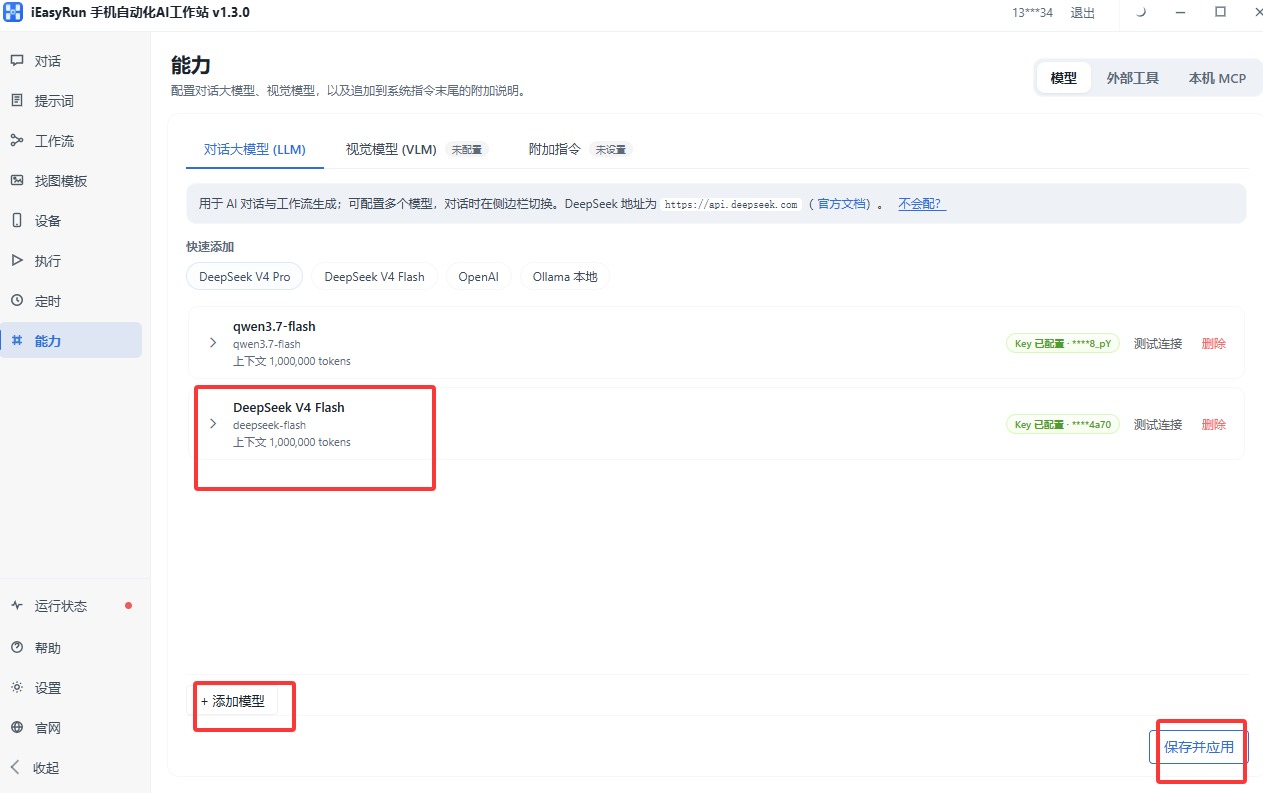
Fig. 20 · Add a model - Step 21
Configure the LLM
After devices are online, configure models in iEasyRun so chat and workflows can understand requests and drive the phone.
Open Capabilities in the left sidebar and set up:
- Chat model: understands your instructions and plans steps (e.g. DeepSeek, Qwen)
- Vision model (VLM): reads screenshots and decides where to tap; it can use a different provider than the chat model
- Fill in the API Key, endpoint, and model name for each, save, then start chatting
After models are configured: ask questions or describe tasks in Chat; or open Help in the left sidebar to look up features, troubleshooting, and how-tos in a help conversation.
- ✓
Install complete — what next
PC, phone, license, and scan are ready. Please confirm:
- tjcenter-new.exe signed in; Offline device license bound
- iPhone Developer Mode is on (Settings → Privacy & Security → Developer Mode)
- Batch initialize done; App settings shows user + validity
- iEasyRun signed in; offline device listed under Devices
- Model configured under Capabilities
- Chat can send a simple task to that device; use left-sidebar Help when you need guides